Adding a Domain to your cPanel
1. Accessing Domain Settings
- First, open your cPanel and log in (for a guide on how to do this look here)
- Select "Domains" from the "Domains" sub-menu

2. Adding a Domain Name
- Within the Domains page find the select the "Create a New Domain" button

- Now on the next page, enter your domain name in the "Domain" text box
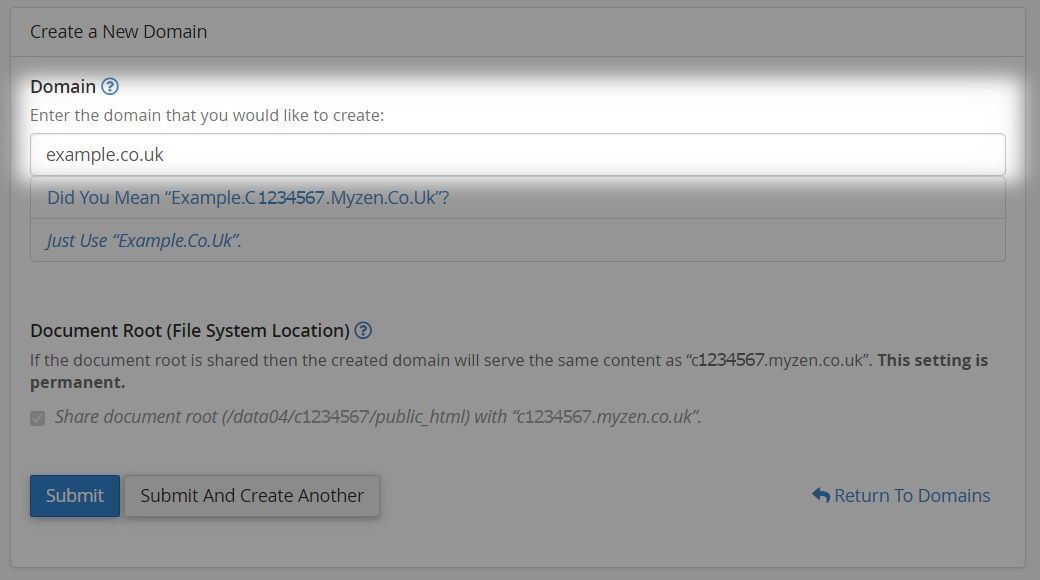
- You may be provided multiple options and suggestions below. select the "Just Use" option
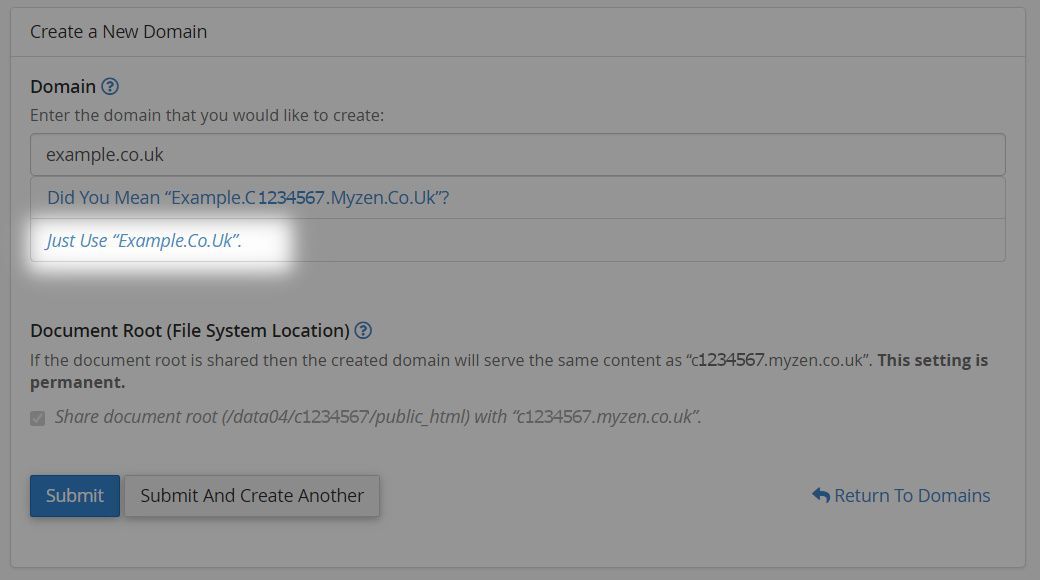
- If you have a cPanel Silver or above service, you have the option to untick the "Share document root" and set your own location for your domain to sit
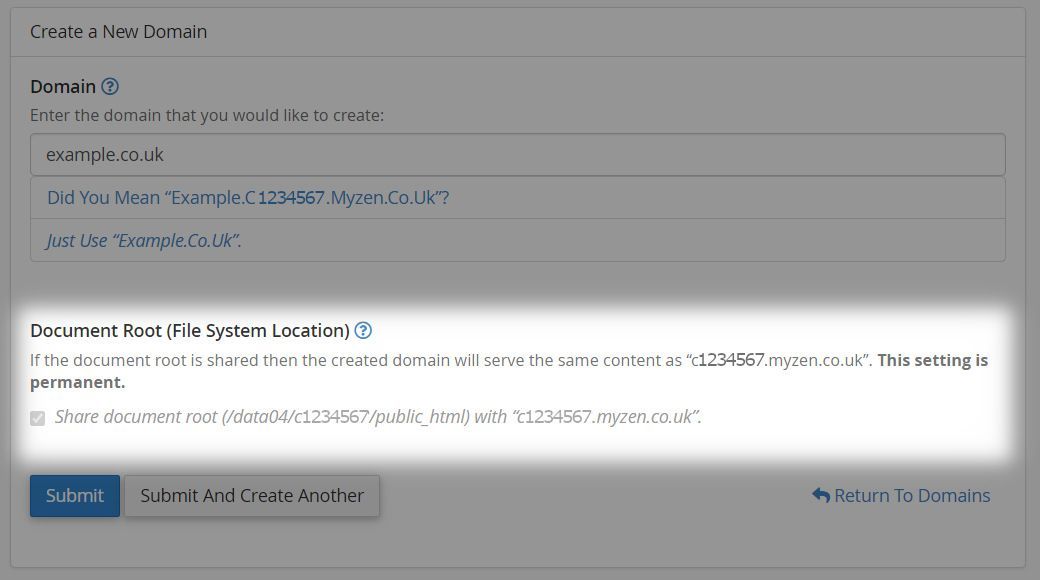
- Finally after either having the box ticked or choosing your location, click "Submit" to add the domain to your cPanel
Adding Domain DNS Records
Now your domain has been added onto your cPanel. You'll need to configure DNS records.
If you're a Home user you can find a guide on how to do this here.
For Businesses this guide will show you what you need to do.
Download the Zen mobile application to manage your broadband plans.


Apple and Apple logo are trademarks of Apple Inc. Google Play and the Google Play logo are trademarks of Google LLC.
