Finding Your Personal Information for Home
1. Logging into your Portal
If you have a business account, use this guide here
- Go to the "My Account" section of the Zen website and enter your username or password
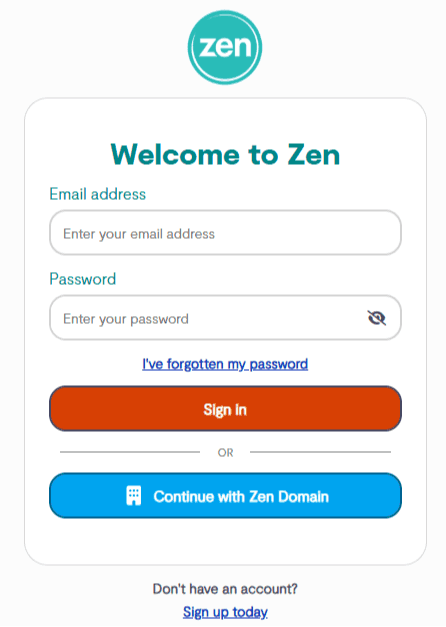
Note - If you are not signed up for the portal click the button to "Sign Up for a Zen Account"
2. Changing Personal Details
- Select the "Edit Profile" tab at the top of the page

- Select the "My Profile" tile
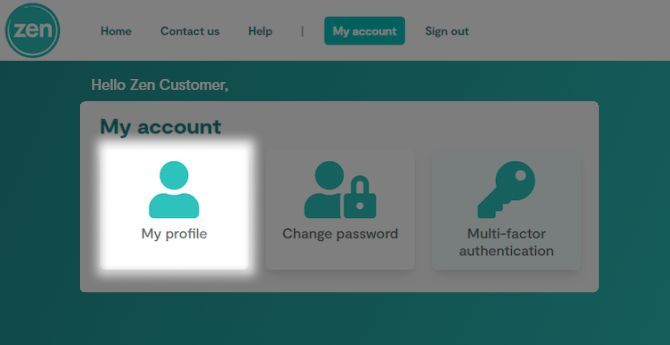
- Here you can change the "Mobile Number" associated to your account
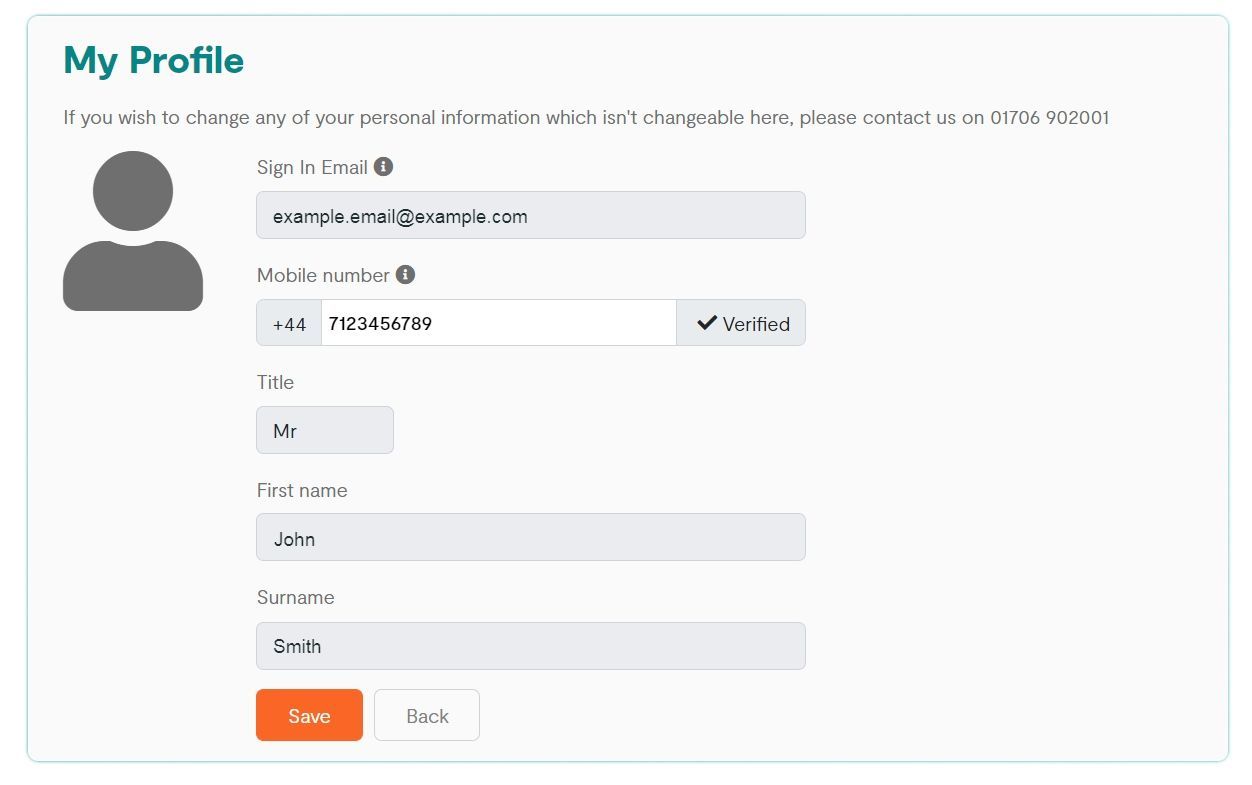
Note - If you need to change any of the details greyed out. Please contact the number shown.
3. Changing Your Password
- Select the "Edit Profile" tab at the top of the page
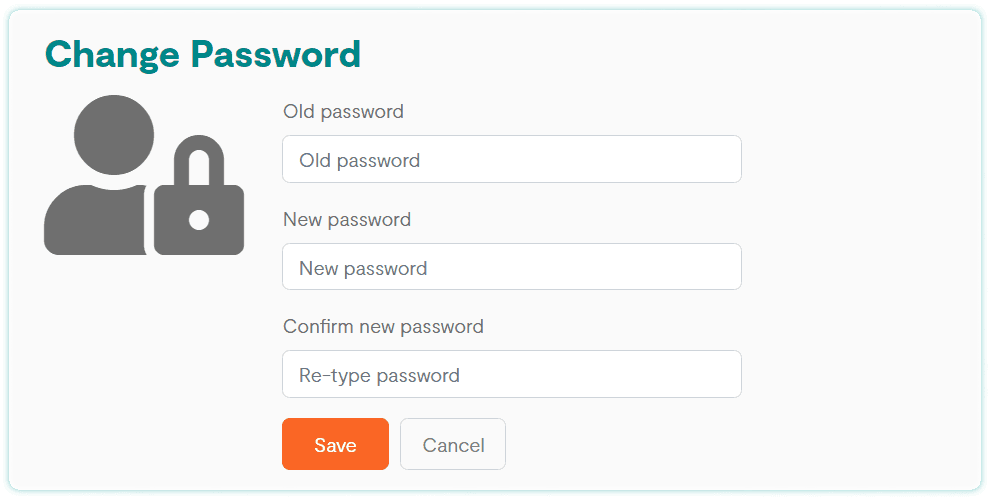
- Select the "Change Password" tile
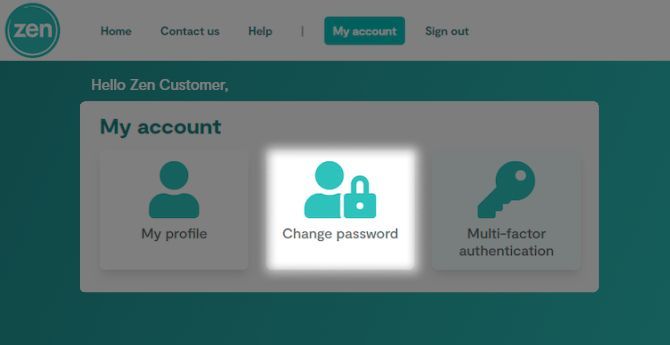
- Here you can change your "Log In Password". You must confirm this change by first entering your current password
4. Enabling Multi-factor Authentication
- Select the "Edit Profile" tab at the top of the page
- Select the "Multi-factor authentication" tile
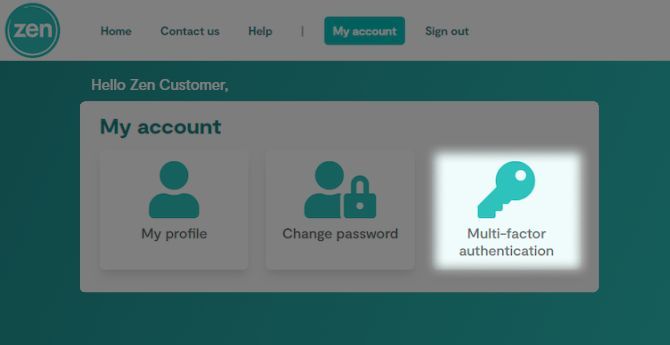
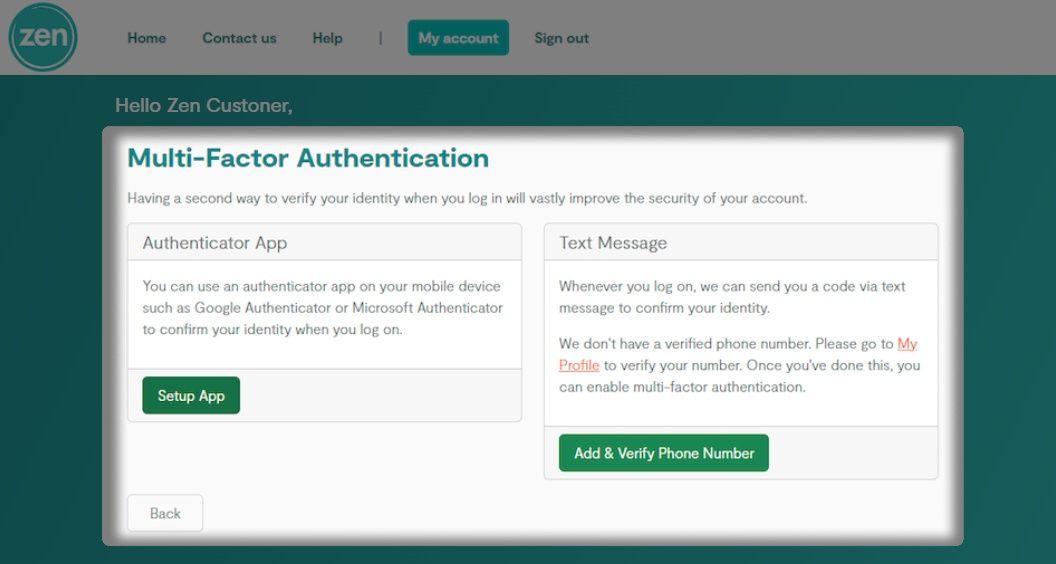
- Here you choose to enable MFA through the "App" or "Phone number" setup guides shown
Download the Zen mobile application to manage your broadband plans.


Apple and Apple logo are trademarks of Apple Inc. Google Play and the Google Play logo are trademarks of Google LLC.
