Upgrading to FreedomFibre
Before You Start!
When upgrading from Broadband to FreedomFibre. There's a couple of things you'll need to change with how your router is setup.
Follow the below steps on how to change both your physical setup and router settings.
1. Swap Over Your Cables
- Start by disconnecting your grey DSL cable. One end will be into "DSL" on the back of your FRITZ!Box router
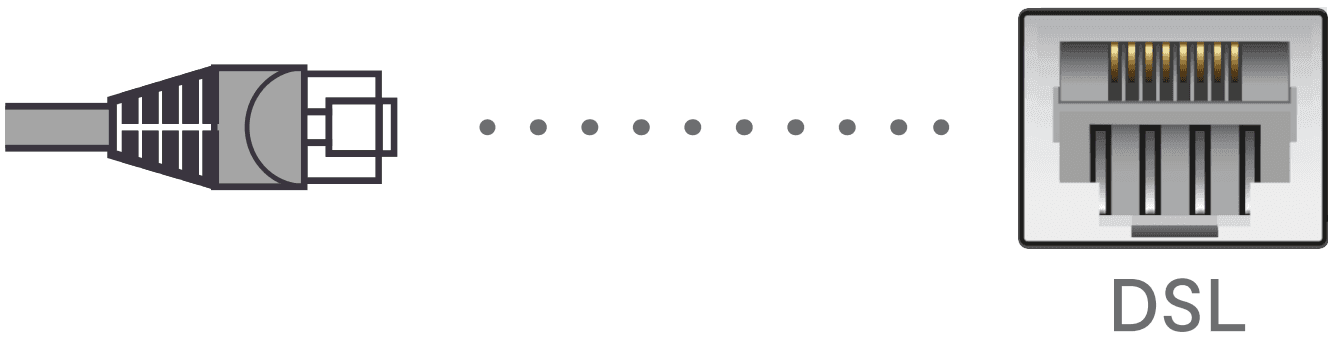
- Now disconnect the other end of the grey cable from your telephone socket or DSL microfilter

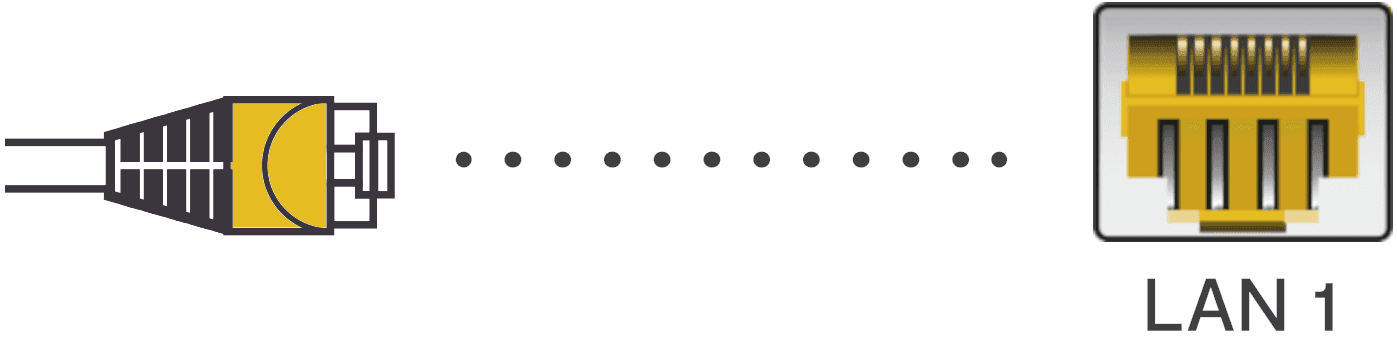
- Find and connect the provided white Ethernet cable to "LAN 1" on the back of your FRITZ!Box
- Connect the other side of this white cable to the "LAN", "2.5G-ETH2" or "LAN-10GE" on the engineer installed ONT mounted to your wall
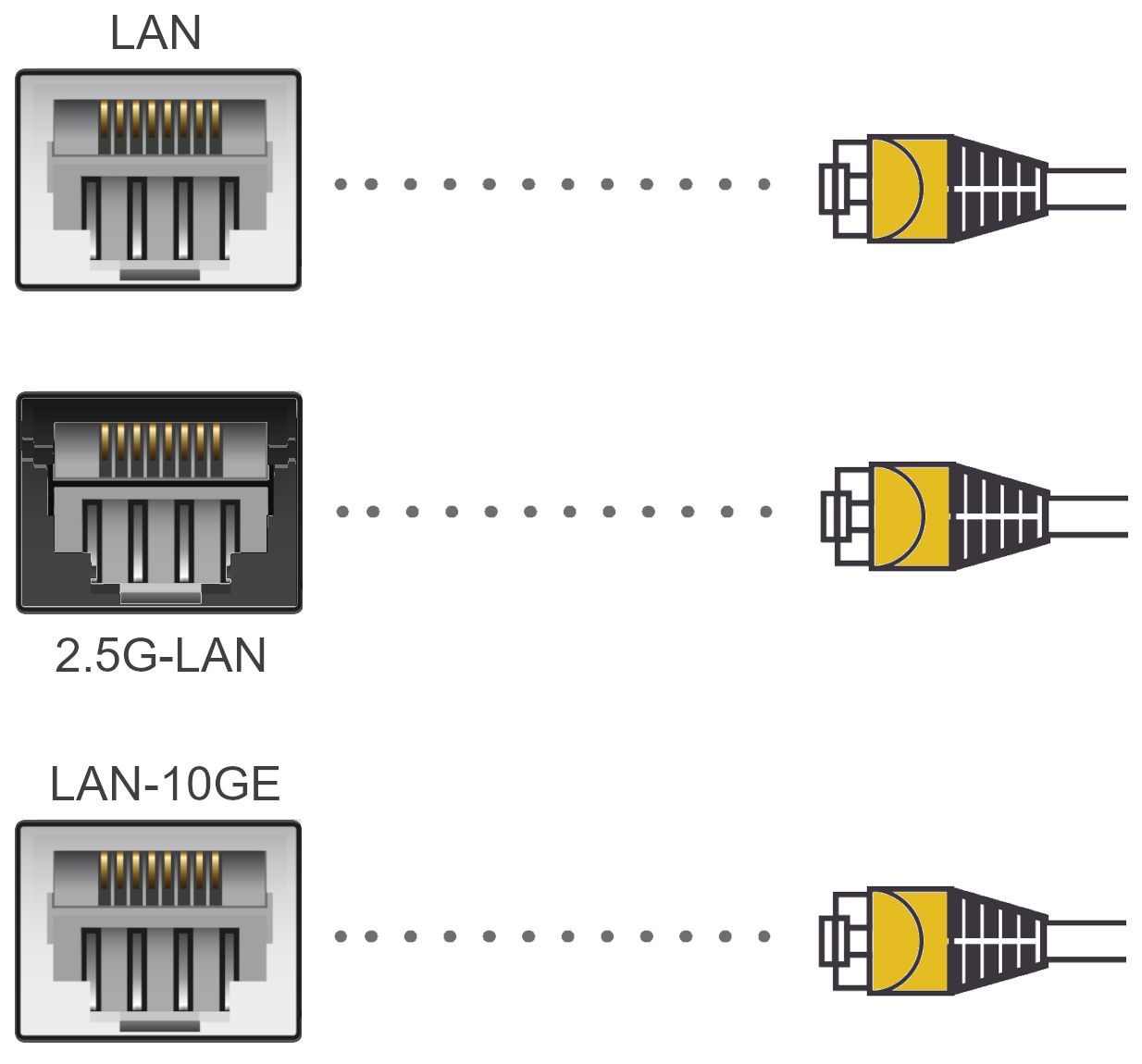
Note: Your ONT may already have an Ethernet cable into one of the above ports. If this is the case, connect the other end of this to "LAN 1" on your FRITZ!Box.
2. Logging Into Your FRITZ!Box
- Start by finding the "FRITZ!Box Password" on the underside of your router
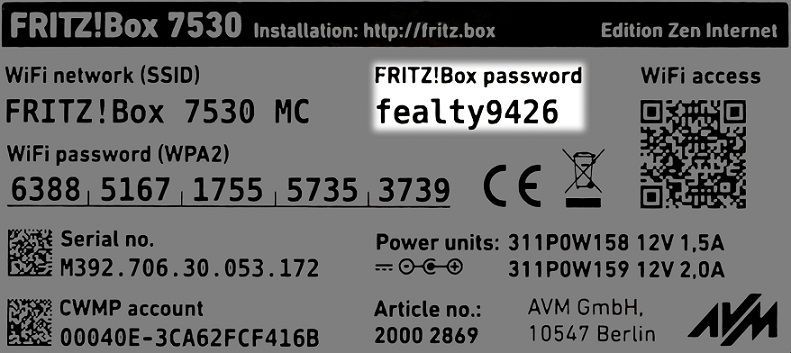
- On your device, open a web browser and go to http://192.168.178.1 (when connected to your router via WiFi or a Wire)
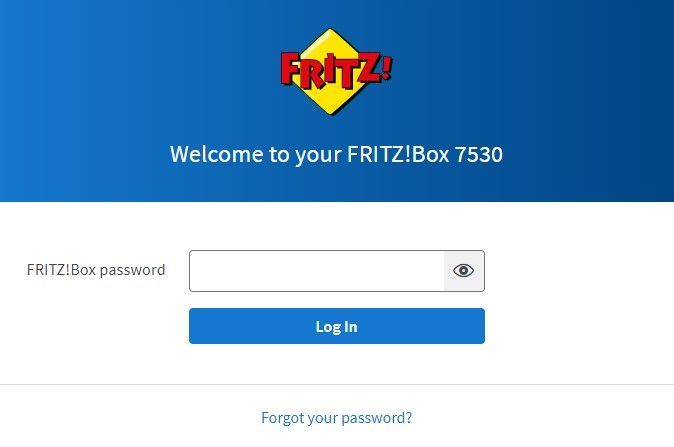
- You'll be shown a log in screen with an empty "Password" field, enter the "FRITZ!Box Password" and click "Log In"
Note: You can also find these steps on our "How To" Video on YouTube.
3. Internet Settings
Now you're logged in, select the following menu options:
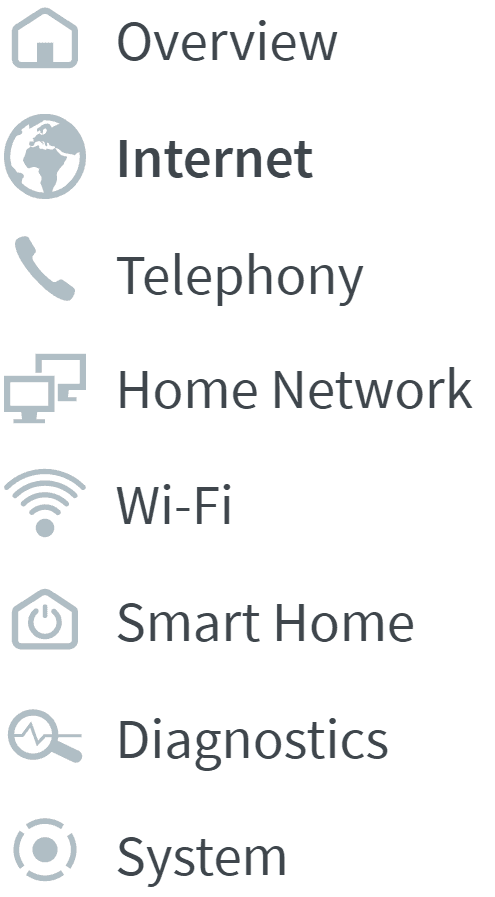
- "Internet" on the left-hand side of the page
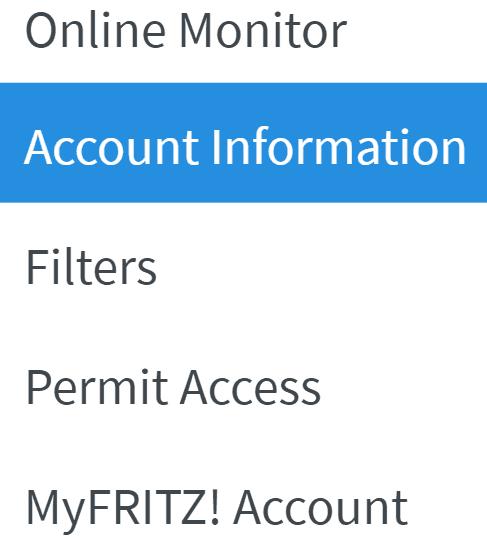
- "Account Information" within this
4. Checking Account Information
- Ensure your "Internet Service Provider" is set to "Zen Internet"

- Your "Username" and "Password" should already be entered

Note: If these details are missing, please find them by logging into the Customer Portal.
5. Changing Connection Settings
- Click "Change Connection Settings"

- Ensure "Maintain permanently" is selected

- Select "Via an external modem" as the connection type

- Enter "1000" for "Upstream" and "Downstream" within "Data Throughput"

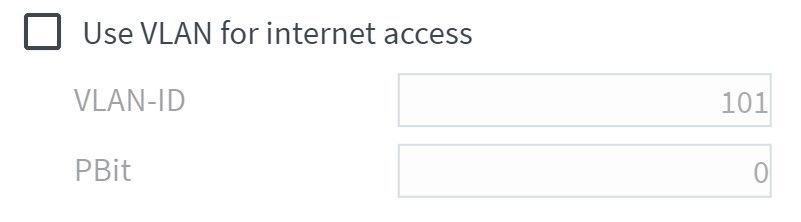
- Ensure that the "Use VLAN for internet access" is not ticked
- Click "Apply" to save settings

Still Need a Hand?
If the above steps don't get you online, please contact our Technical Support team for further assistance.
Download the Zen mobile application to manage your broadband plans.


Apple and Apple logo are trademarks of Apple Inc. Google Play and the Google Play logo are trademarks of Google LLC.
