Upgrading to Full Fibre
Before You Start!
When you upgrade from Broadband to Full Fibre using an existing FRITZ!Box router with Zen, there are a few adjustments you’ll need to make to your router setup after the engineer has installed the ONT (Optical Network Terminal).
If you're new to Zen and switching from another provider, or you have received alternative hardware, our Getting Started page is a great place to begin.
Start by unplugging the power cord from your router, then follow the steps below to adjust the connections.
- Start by disconnecting your DSL cable. One end will be into a grey "DSL" port on the back of your FRITZ!Box router
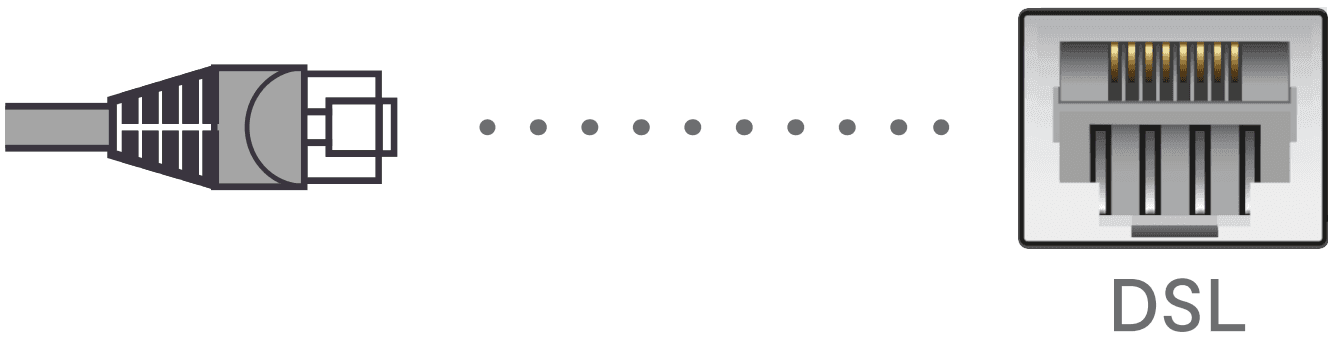
- Now disconnect the other end of the cable from your telephone socket or DSL microfilter

- Find and connect the provided Ethernet cable to the yellow "LAN 1" port on the back of your FRITZ!Box
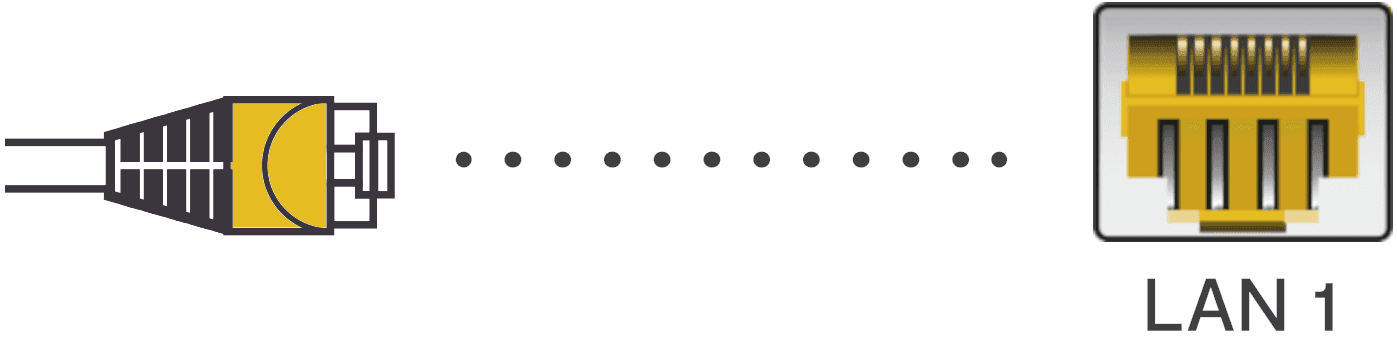
- Connect the other side of this cable to "Port 1"or "LAN" on the engineer installed ONT mounted to your wall
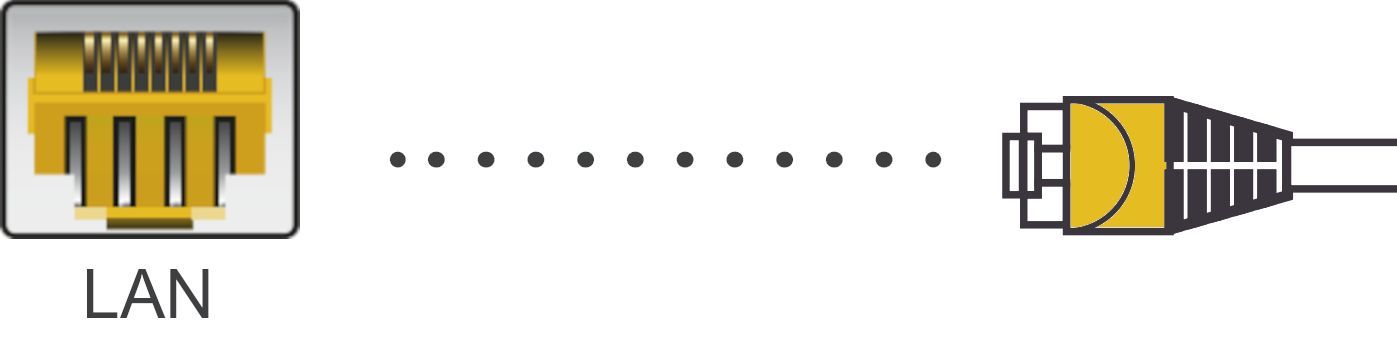
Note: Your ONT may already have an Ethernet cable into "Port 1" or "LAN". If this is the case, connect the other end of this to "LAN 1" on your FRITZ!Box.
- Now power on the router and wait for the Power/DSL light to go a solid green

Still Need a Hand?
If the above steps don't get you online, please contact our Technical Support team for further assistance.
Download the Zen mobile application to manage your broadband plans.


Apple and Apple logo are trademarks of Apple Inc. Google Play and the Google Play logo are trademarks of Google LLC.
