Updating the PHP Version on cPanel
1. Accessing the MultiPHP Manager
- Start by opening your cPanel dashboard and logging in with your username and password.
If you need help finding or using your cPanel login, take a look at this helpful guide
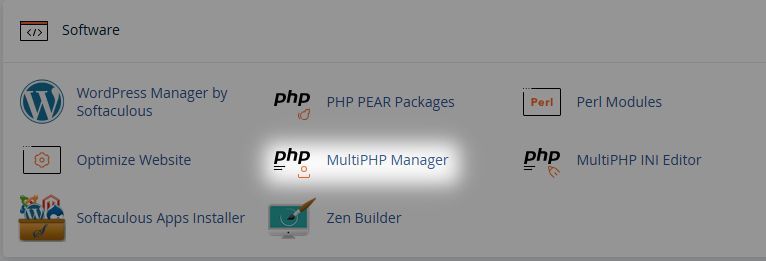
- Once you're logged in, select "MultiPHP Manager" from the "Software" sub-menu.
2. Identifying an out of date PHP Version
- Look for any out of date PHP versions by checking for a "Deprecation warning" at the top of the page. If you see this message, it means that one or more of your domains is using an outdated version of PHP

- Identify which domain(s) are affected by looking for the domain name(s) in the list at the bottom of the page, then select (tick) the corresponding box next to the domain name

3. Updating the PHP version of a Domain
- Use the drop-down menu to view the available versions of PHP software. Select the most recent version from the list
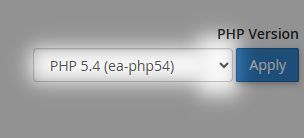
- Once you've selected the latest version of PHP, click "Apply" to save your changes and update the PHP version for the selected domain(s)
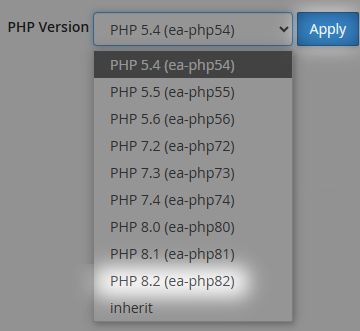
- After you apply the changes, you should see a confirmation message on the page. The MultiPHP Manager will now display the chosen (latest) version of PHP against each updated domain at the bottom of the page

Download the Zen mobile application to manage your broadband plans.


Apple and Apple logo are trademarks of Apple Inc. Google Play and the Google Play logo are trademarks of Google LLC.
