Changing a rDNS Record
1. Logging into your Portal
- Go to the "My Account" section of the Zen website and enter your username or password
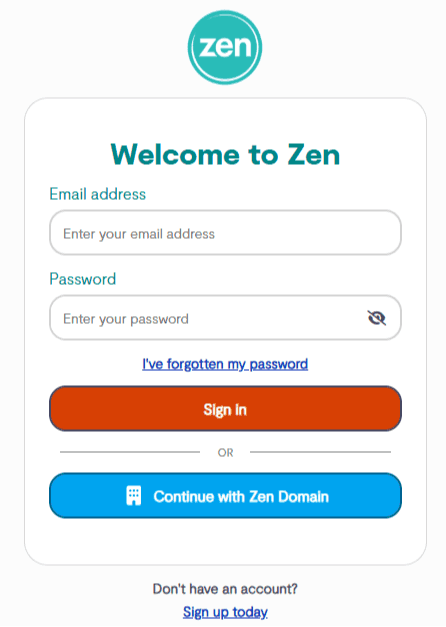
Note - If you are not signed up for the portal click the button to "Sign Up for a Zen Account"
2. Finding Your Service Details
- Click "My Services" tab at the top of the portal page
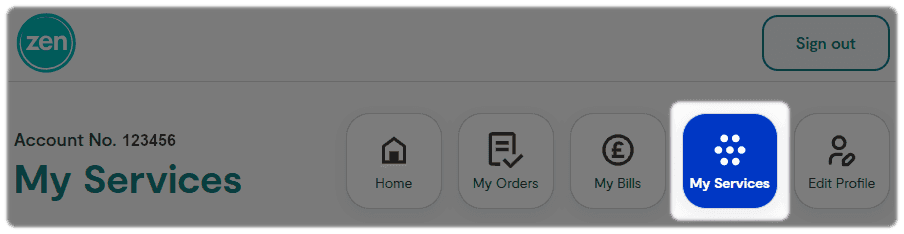
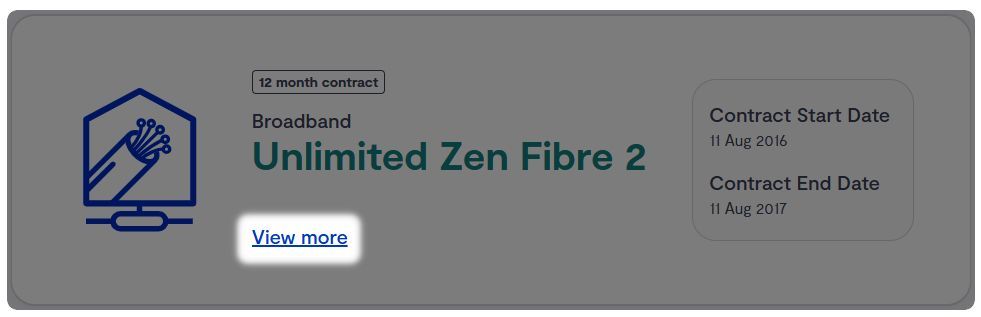
- Find your Internet service from the list, then select the arrow to the side to open more information
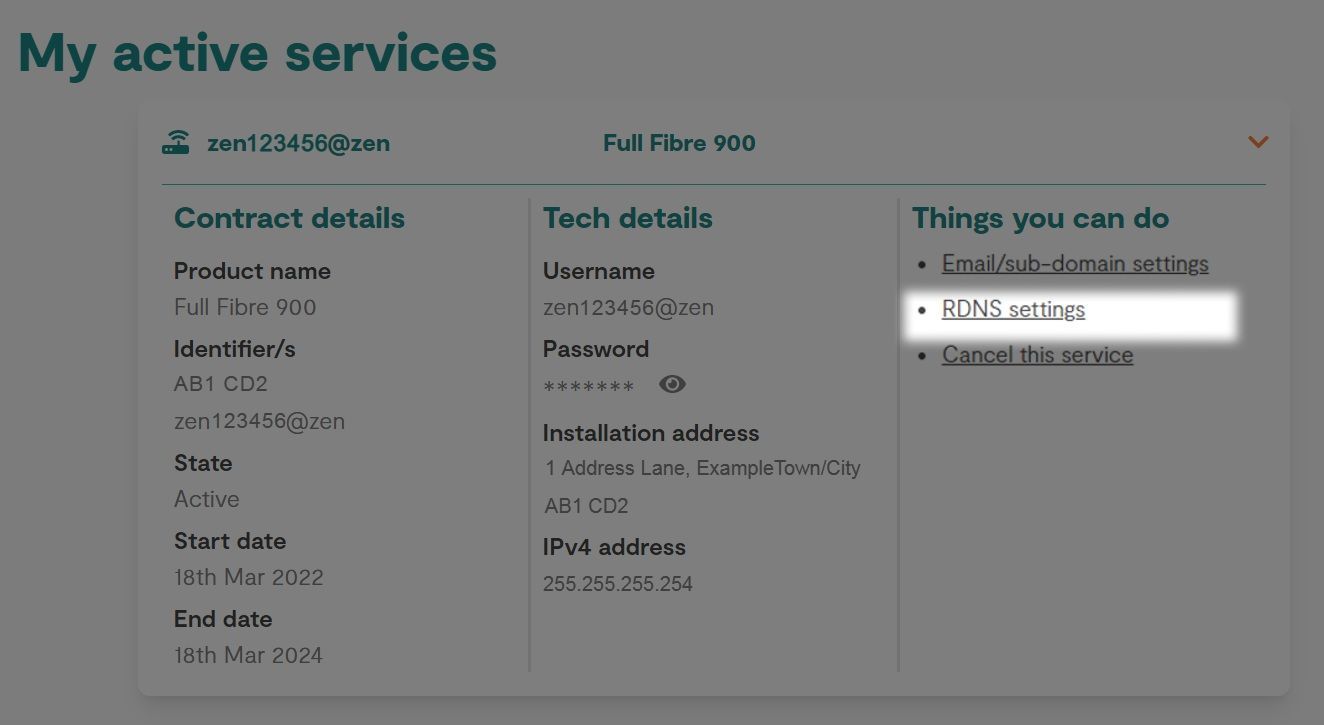
- You'll see a "Things you can do" section, select the option for "RDNS settings"
3. Changing the Record
- Within the "Reverse DNS Management" page, Find the "IP Address" you wish to point your domain name to.
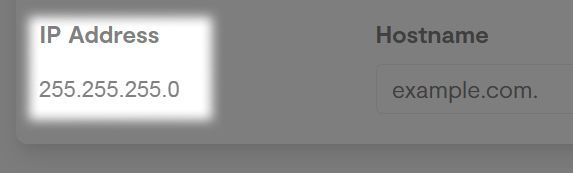
- Then enter your domain name in the "Hostname" field (being sure to add a full stop "." at the end).
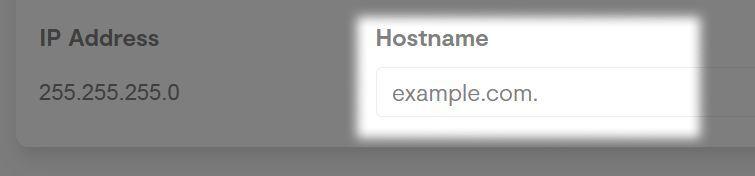
- After pressing "Save" the changes will take place in the next 24 hours pointing your Domain at the Zen IP address.
Note - If at any time you wish to revert changes, simply empty the "Hostname" field and click the option for "Default"
4. Changing an IPv6 Record
If you want to add an rDNS record for an IPv6 address.
- A AAAA record will need to be added
Please contact our Web Hosting team.
Download the Zen mobile application to manage your broadband plans.


Apple and Apple logo are trademarks of Apple Inc. Google Play and the Google Play logo are trademarks of Google LLC.
