Setting up Direct Debit Details for Home
1. Logging into your Portal
- Go to the "My Account" section of the Zen website and enter your username or password
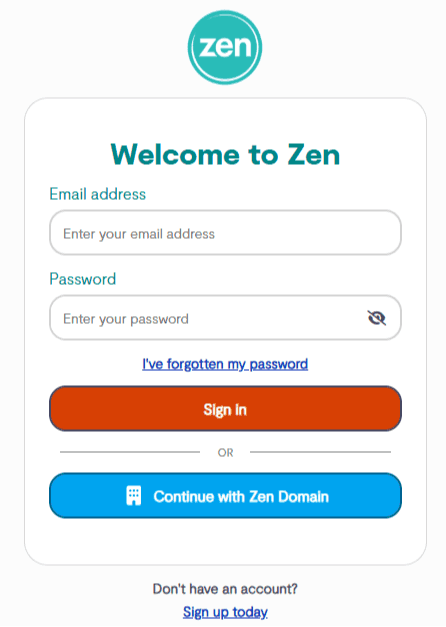
Note - If you are not signed up for the portal click the button to "Sign Up for a Zen Account"
2. Finding the Billing Details
- From the Home page select the "My Bills" option on the top menu section

- Now select one of the following from either "Create Direct Debit" or "Manage Direct Debit"
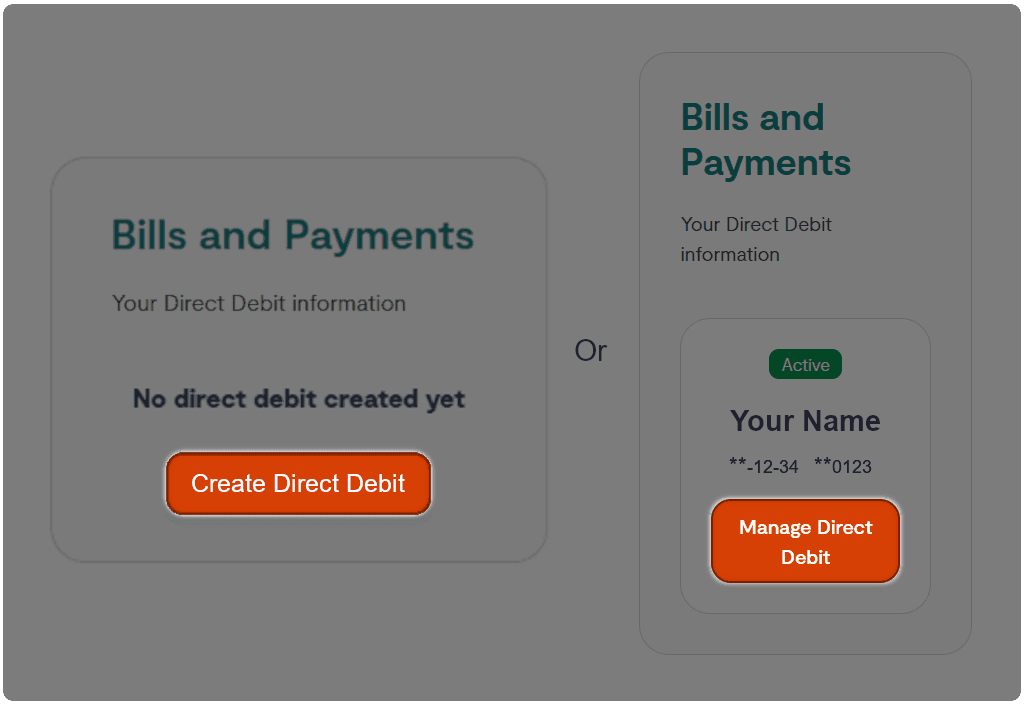
- When Create Direct Debit is selected, it will ask what services you wish to add, select the drop down menu that appears and select the service.
- When Manage Direct Debit is selected you will be presented with a confirmation "All services linked to this direct debit will be affected by this change. Do you want to continue?" Select Continue to proceed

3. Bank Details
When presented with a 'Direct debit' or an 'Update direct debit bank details' page enter the following:
- Enter the name, sort code and number of your bank account you wish to setup direct debit with
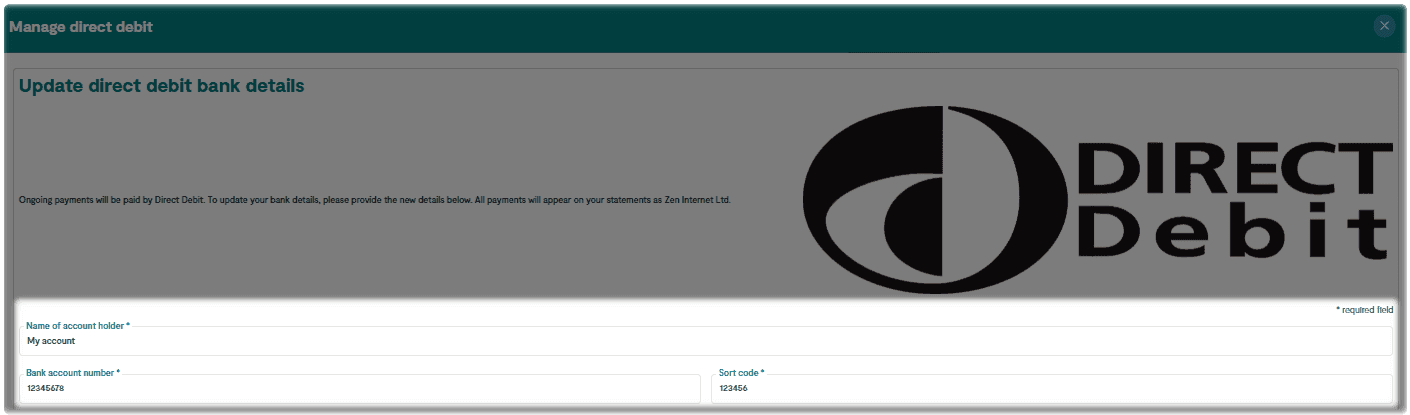
- Tick the box to confirm you're the account holder

- Select the button to "Verify Bank Details" to run a check against the account
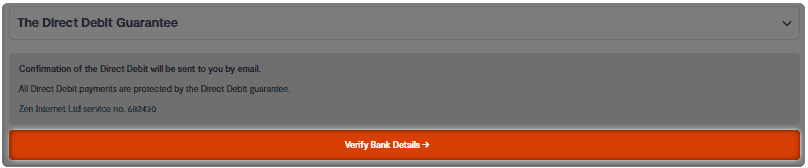
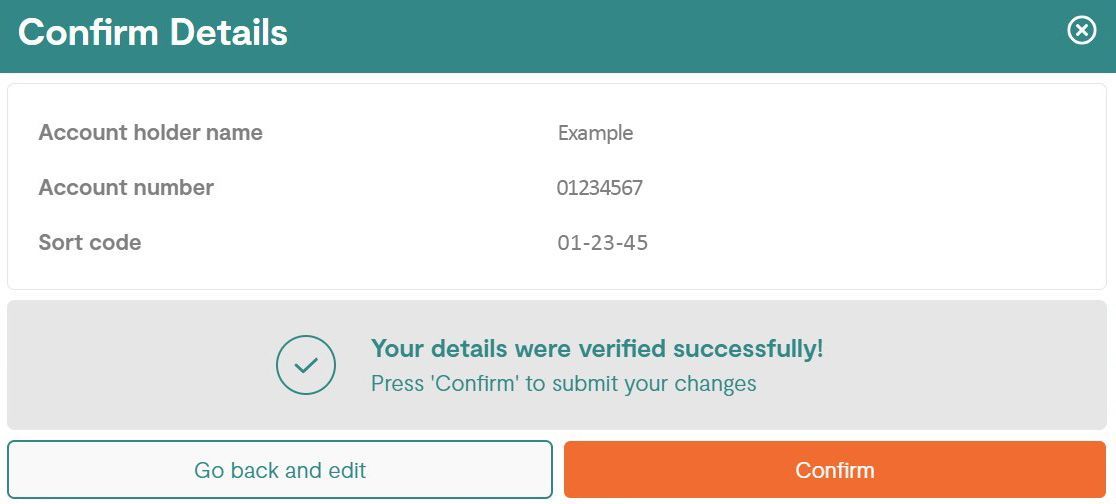
- Once your details have been verified, select "Confirm" to complete the change
4. Changing the Billing Date
If you want to change the billing date for a Direct Debit, you can contact the customer billing team on:
Email - creditandbilling@zen.co.uk
Phone - 01706 902003 (select Residential Customer)
Download the Zen mobile application to manage your broadband plans.


Apple and Apple logo are trademarks of Apple Inc. Google Play and the Google Play logo are trademarks of Google LLC.
