Adding SPF/DKIM Records to Verify Business Email
1. Accessing Email Deliverability Settings
- First, open your cPanel and log in (for a guide on how to do this look here)
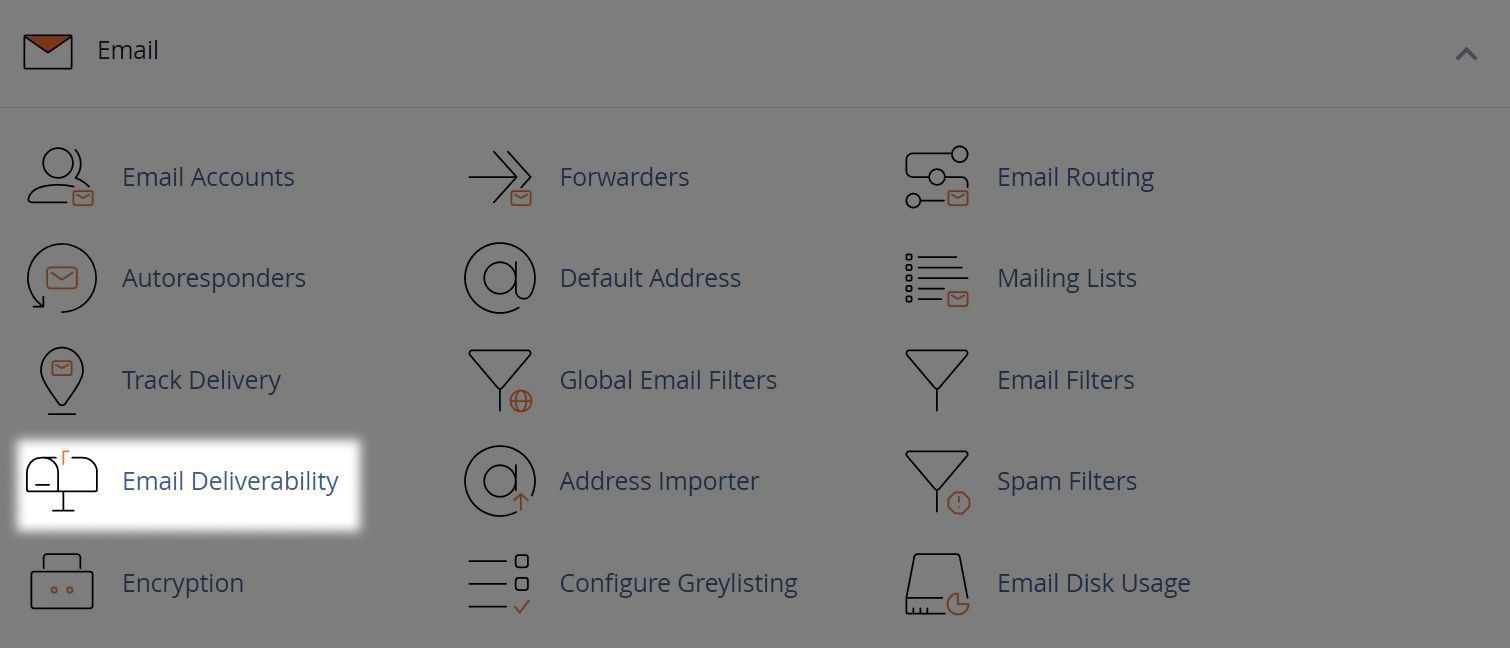
- Select "Email Deliverability" from the "Email" sub-menu
NOTE: If you're using external email servers instead of cPanel for sending your domain emails, you'll need to manually adjust the following cPanel Suggested SPF policy. Please consult your IT Support to do this.
2. Finding Generated DKIM/SPF Records
- Find your domain name within the list and click the "Manage" button

- You'll see information for "DKIM" and "SPF" records
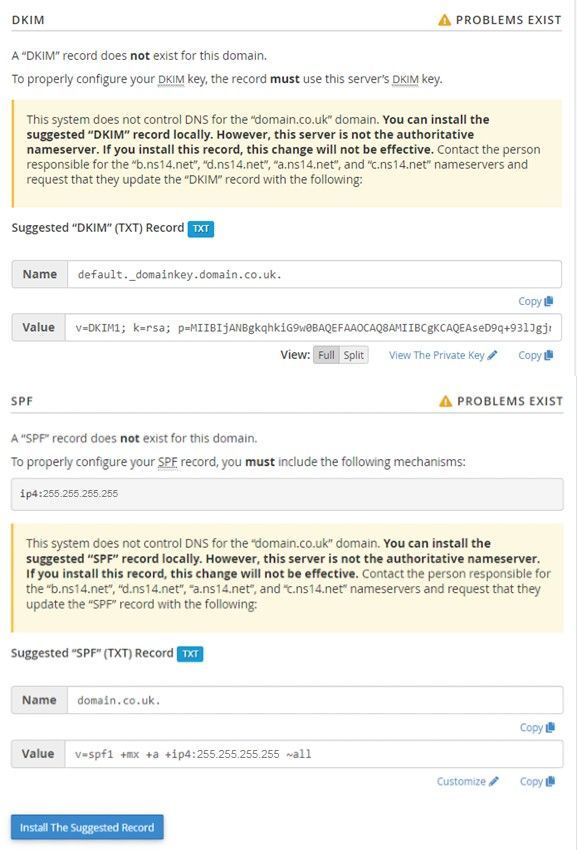
- You don't need to do anything with the information here yet, but keep this page open as we'll need it later.
NOTE: If you've registered your domain with a third party, or using external name servers, you'll need to add these SPF/DKIM records onto the DNS platform you use.
3. Logging into your Portal
- Go to the "My Account" section of the Zen website and enter your username or password
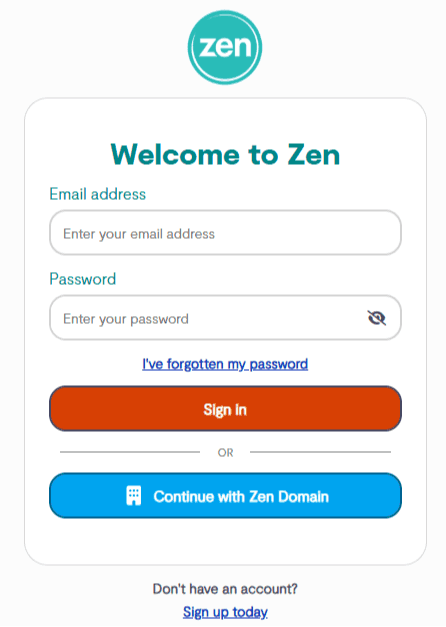
Note - If you are not signed up for the portal click the button to "Sign Up for a Zen Account"
4. Finding DNS Tools
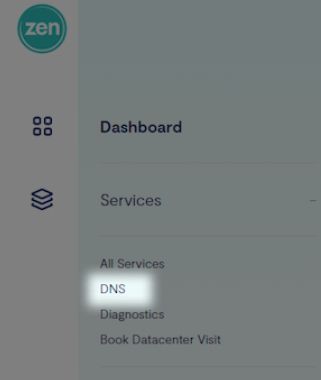
- Select "Services" at the side of the main Portal page
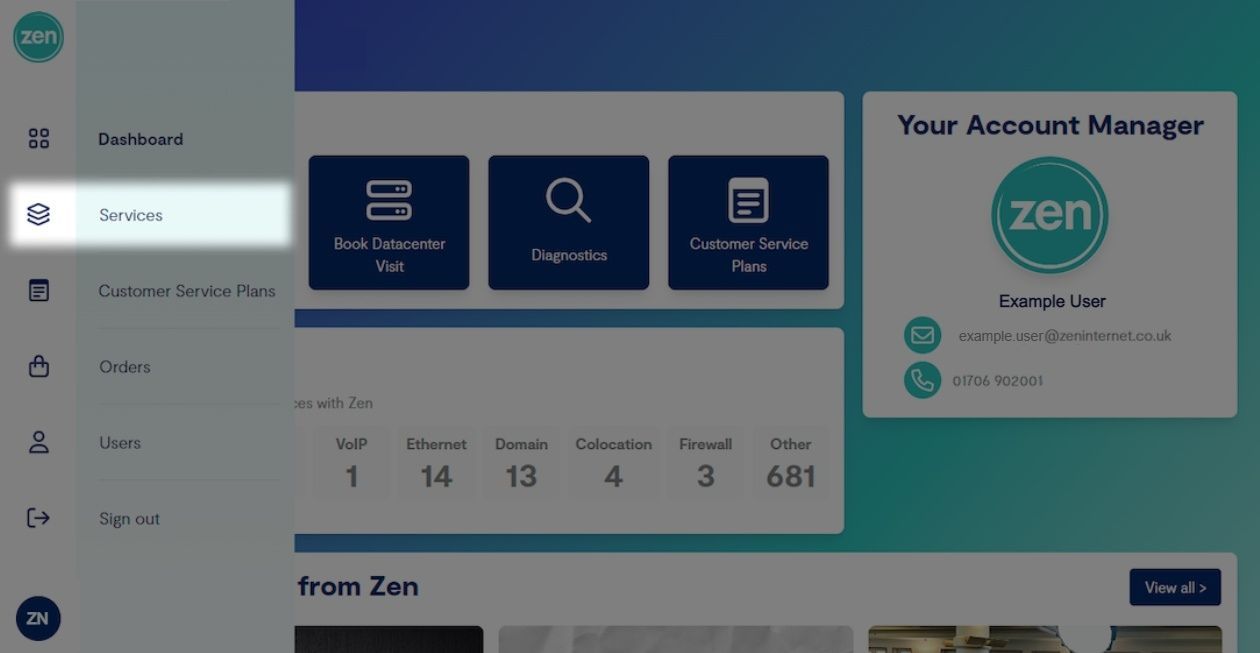
- Then select the "DNS" tab
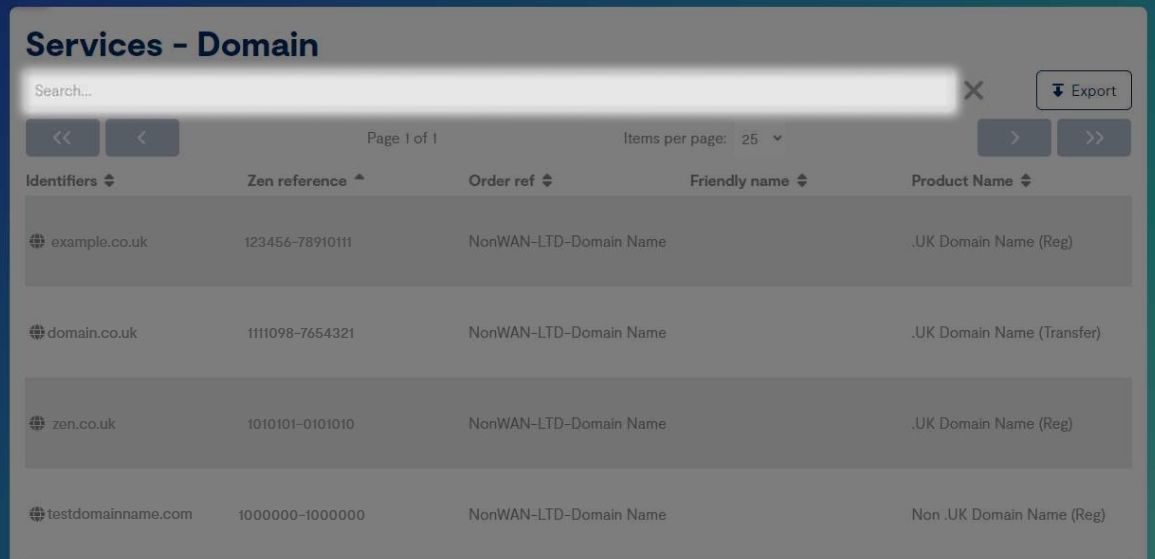
- Search for the service you want to change the records for, using the "Domain name" then select it from the list
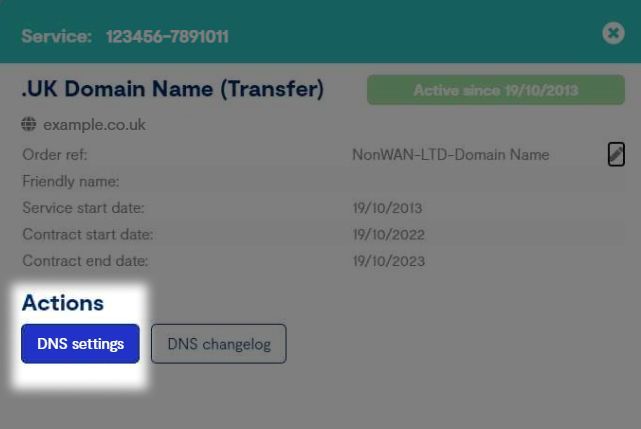
- Within the service, select "DNS settings"
- Then select "Advanced DNS Tools" from the three options
5. Adding the SPF Record
We now need to copy the information from the previous cPanel page, into the TXT record page on the Zen Customer Portal.
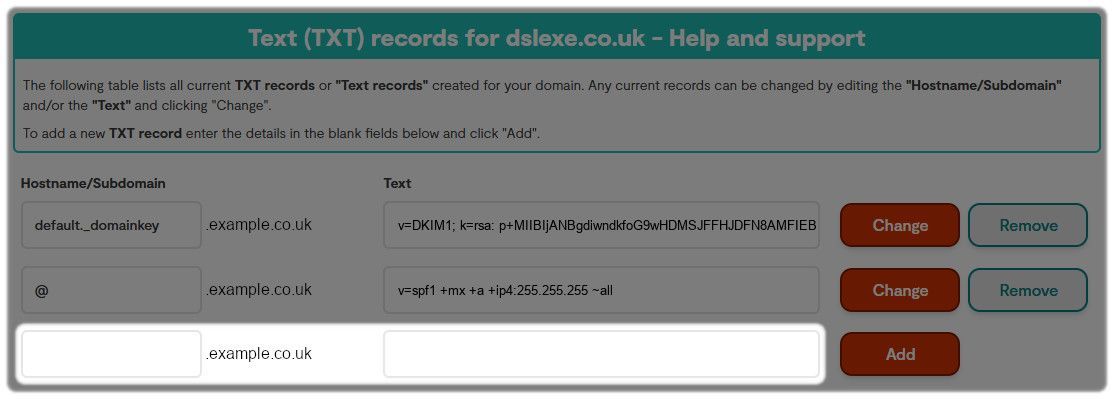
- Copy the "Name" from the Suggested SPF record on cPanel, into the "Hostname/Subdomain " field on the Zen Customer Portal.
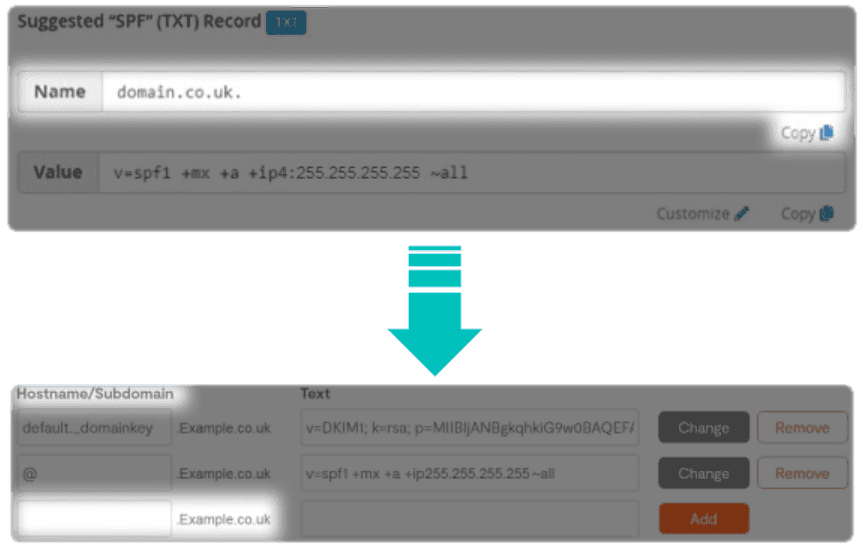
- Now copy the "Value" from the Suggested SPF record on cPanel, into the "Text" field on the Zen Customer Portal
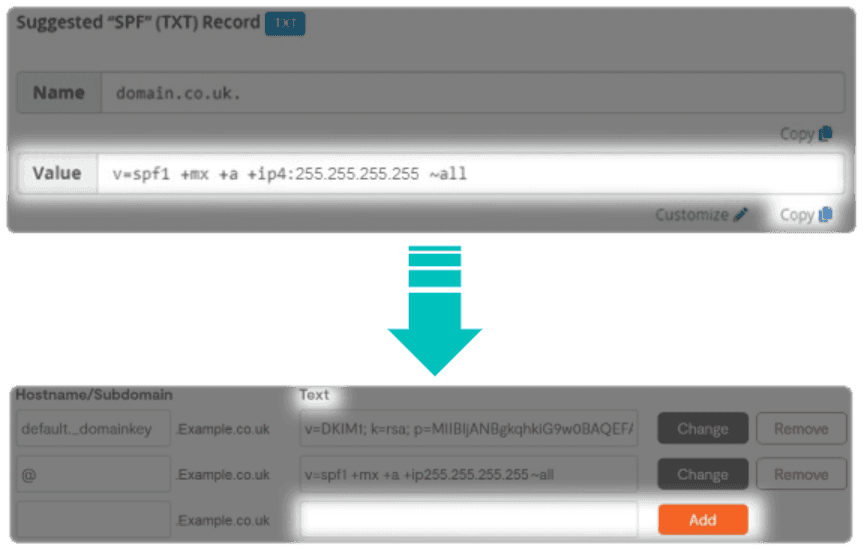
Finally click "Add " on the Zen Customer Portal to add the record.
6. Adding the DKIM Record
Like with the SPF record. Copy the information from the previous cPanel page, into the TXT record page on the Zen Customer Portal.
- Enter "default._domainkey"into the "Hostname/Subdomain " field on the Zen Customer Portal

- Now copy the "Value" from the Suggested SPF record on cPanel, into the "Text" field on the Zen Customer Portal
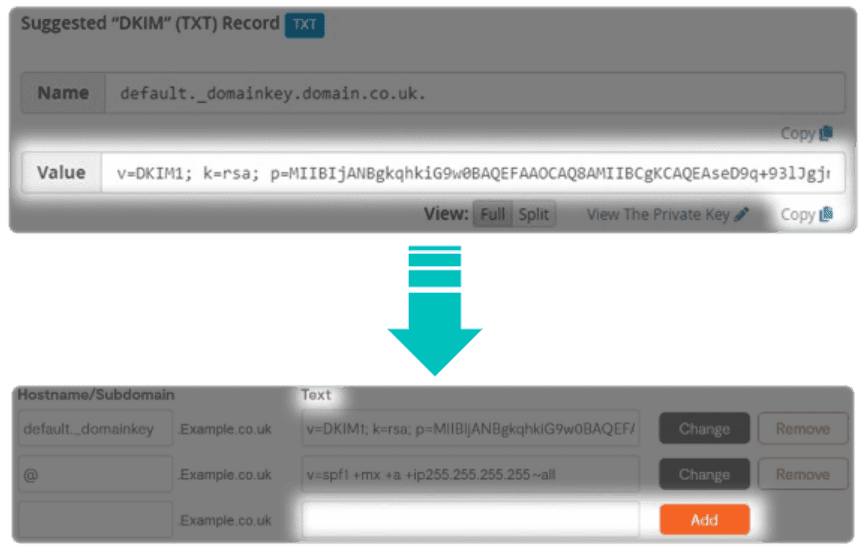
- Finally click "Add" on the Zen Customer Portal to add the record
DMARC
Once you've added your SPF and DKIM records, it can take up to 24 hours for the changes to fully take effect across the internet. After you've confirmed everything is working correctly, you can add a DMARC record by following the same process.
We have a guide Adding DMARC Records for your cPanel Domain with further information.
Still Need a Hand?
If encountering problems entering any records, feel free to contact our Web Hosting team.
Download the Zen mobile application to manage your broadband plans.


Apple and Apple logo are trademarks of Apple Inc. Google Play and the Google Play logo are trademarks of Google LLC.
