Analogue Phone Call Waiting Setup
1. Setting Up Call Waiting
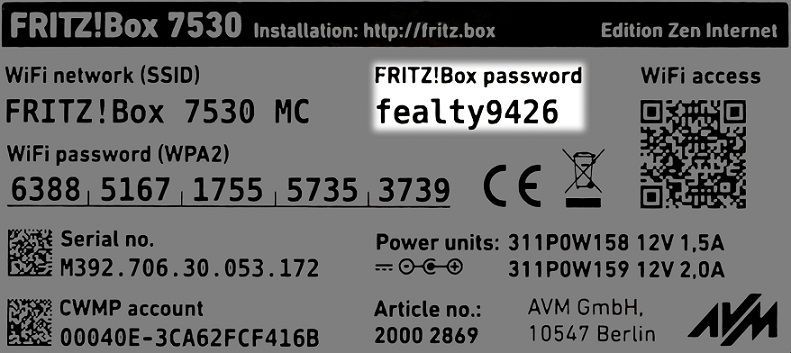
- Start by finding the "FRITZ!Box Password" on the underside of your router
- Using one of your devices, open your web browser of choice and go to http://192.168.178.1 (when connected to your router via WiFi or a Wire)
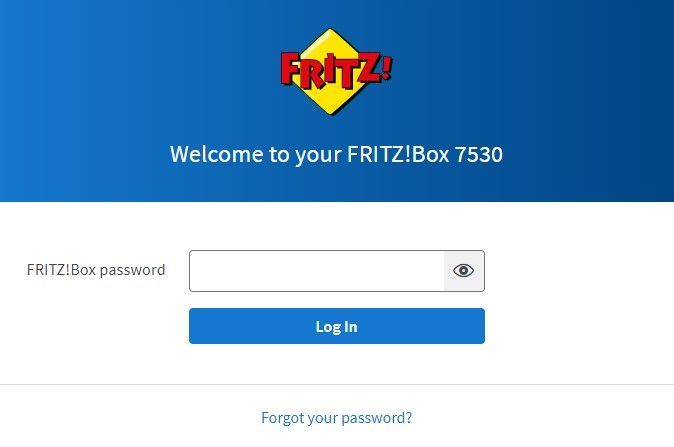
- You'll then be shown a log in screen with an empty "Password" field, enter the found password and click "Log In"
Note: You can also find these steps on our "How To" YouTube Video
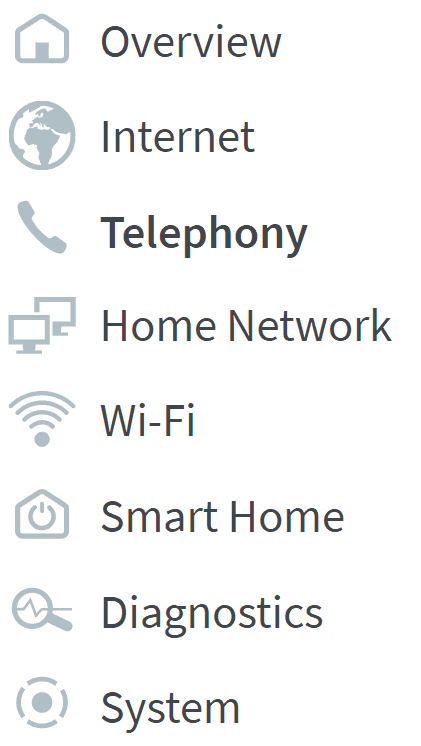
- Click the "Telephony" menu
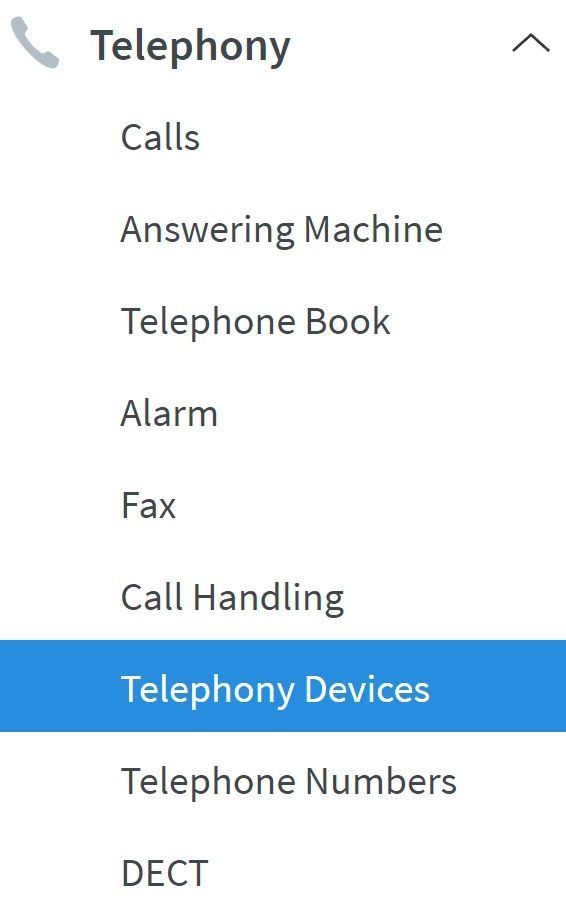
- Now click the "Telephony Devices" sub-menu
- Click the "Edit" button

- Click on the "Telephony Device Features" tab

- Then click on the "Telephony Device Features" tab, then disable the option "Call rejection on busy (busy on busy)"

- Enable the option "Call waiting"

- Finally click "OK" to save the settings
Download the Zen mobile application to manage your broadband plans.


Apple and Apple logo are trademarks of Apple Inc. Google Play and the Google Play logo are trademarks of Google LLC.
