Changing a cPanel Email Account Quota
1. Accessing Email Account Settings
- First, open your cPanel and log in (for a guide on how to do this look here)
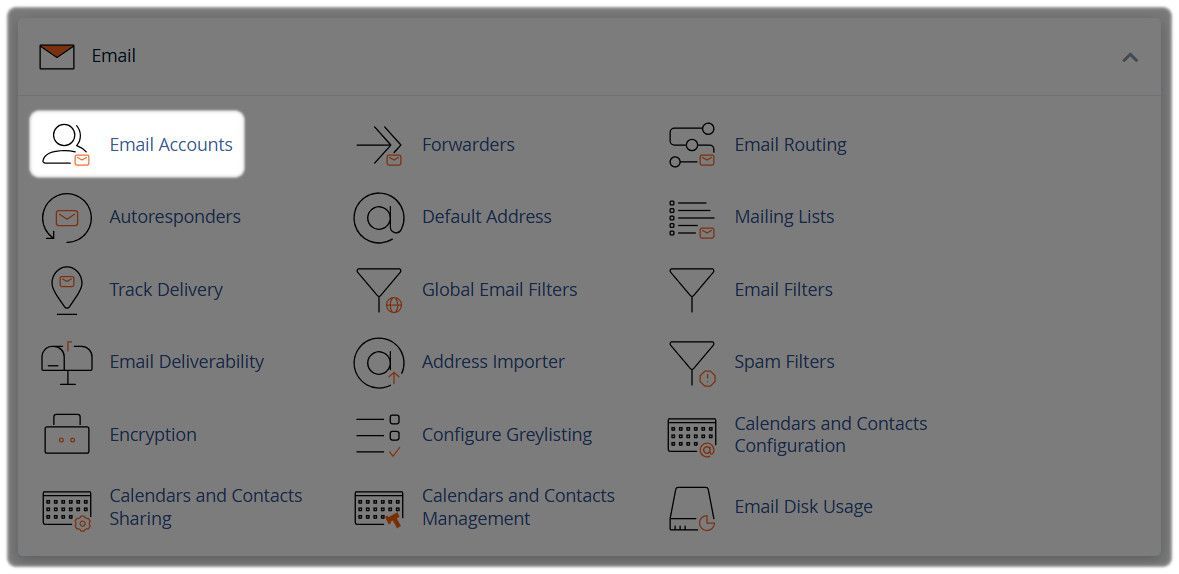
- Select "Email Accounts" from the "Email" sub-menu
2. Finding the Mail Quota
- Find the email account you wish to check the quota for from the list, then select "Manage"

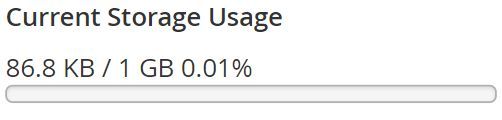
- In the "Storage" field you can find the currently used amount against the current quota
- Select the quota in "MB", "GB", "TB" or "PB" or select "Unlimited"
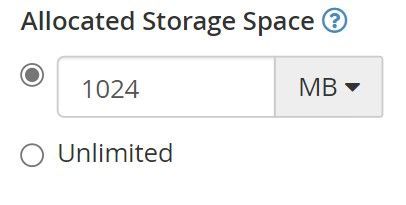
Note: Keep in mind your cPanel will have limited storage space based on the product you've purchased from us here. If selecting a mailbox to unlimited, this can cause your total storage space to be taken up.
- Finally click the "Update Email Settings" button to confirm the change

Note: Should you go over Quota and need a hand, feel free to contact our Web Hosting team.
Download the Zen mobile application to manage your broadband plans.


Apple and Apple logo are trademarks of Apple Inc. Google Play and the Google Play logo are trademarks of Google LLC.
