Changing Email Routing on cPanel
1. Accessing Email Routing Settings
- First, open your cPanel and log in (for a guide on how to do this look here)
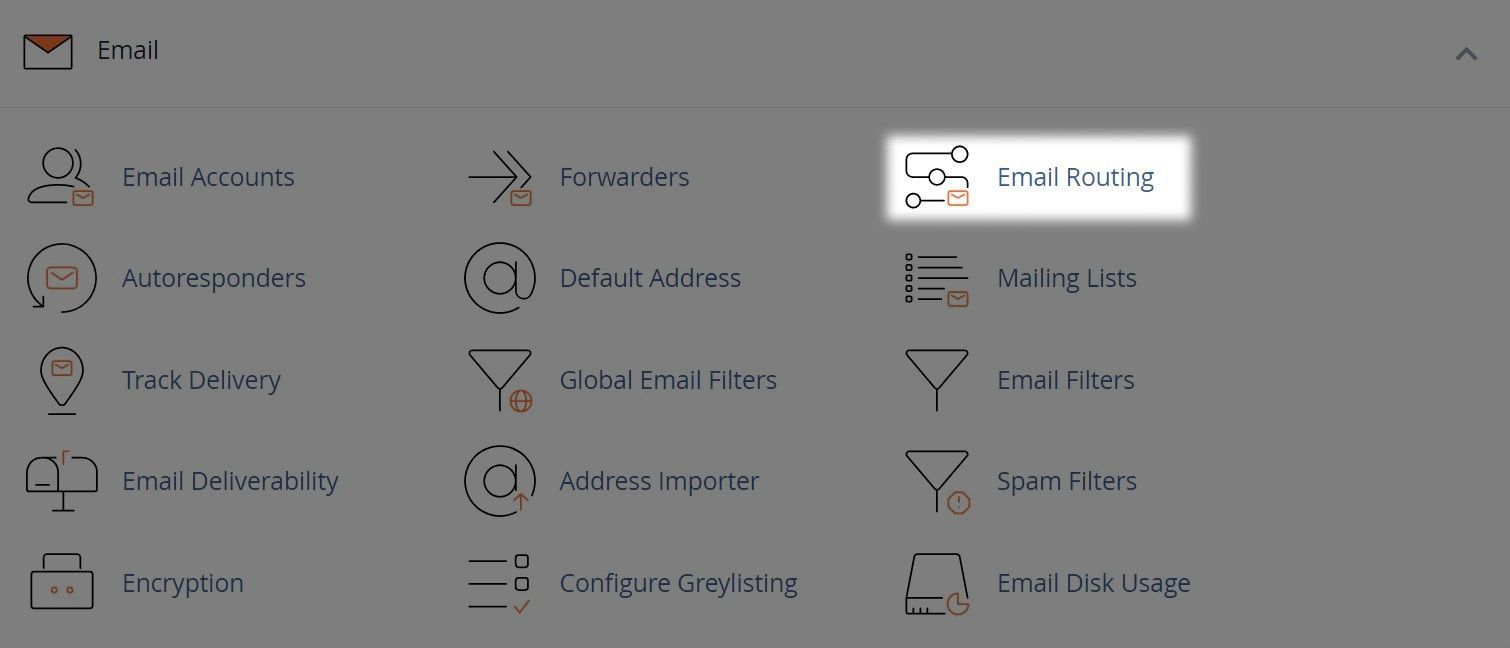
- Select "Email Routing" from the "Email" sub-menu
2. Changing an Email Route
If you have certain configurations, you will need to manually change your email route from the default option of "Automatically Detect Configuration". Select the following option based on your preferences:
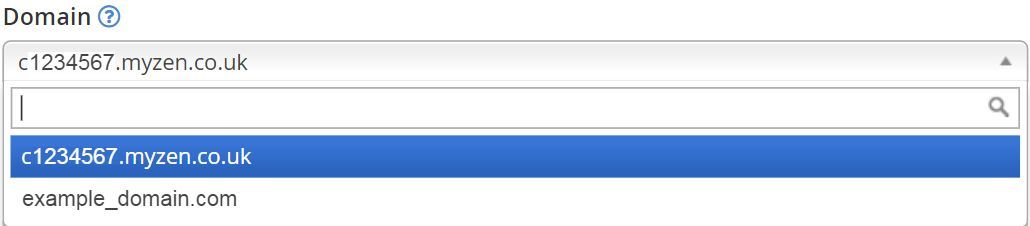
- When using more than one domain, you'll be presented to select the domain you wish to change the route for. This option does not show for accounts with only one domain
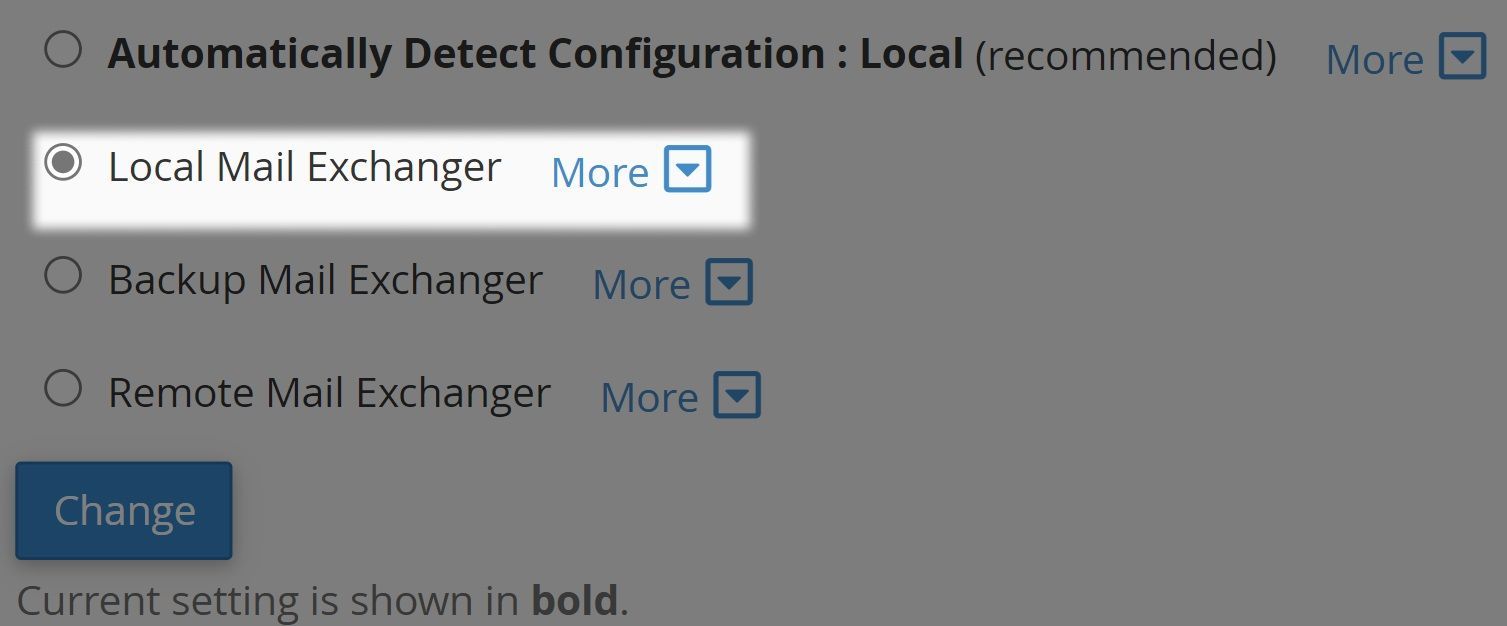
- When you don't use your own, or a 3rd party mail server and want your email to route through the cPanel, select "Local Mail Exchanger"
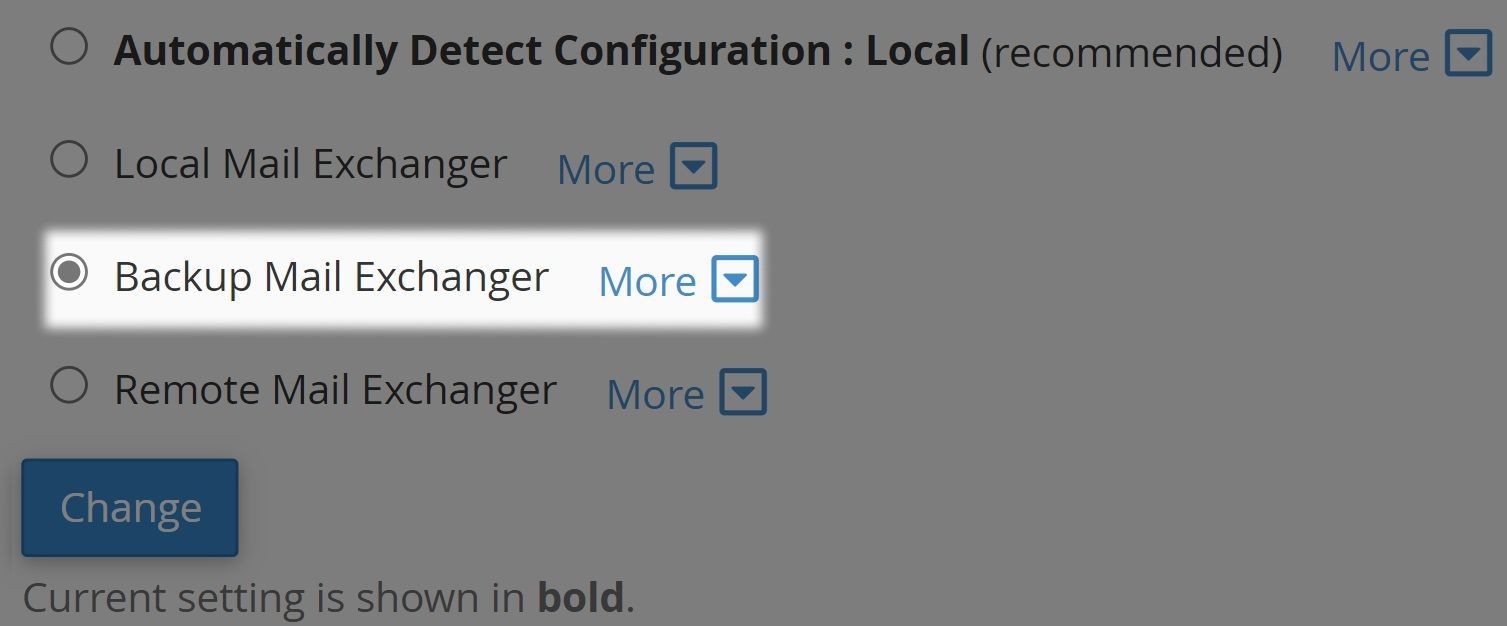
- If you use your own or a 3rd party mail server, however want emails to route through the cPanel, until a lower number mail exchanger becomes available. Select "Backup Mail Exchanger"
- When using your own, or a 3rd party mail server, select the option for "Remote Mail Exchanger"
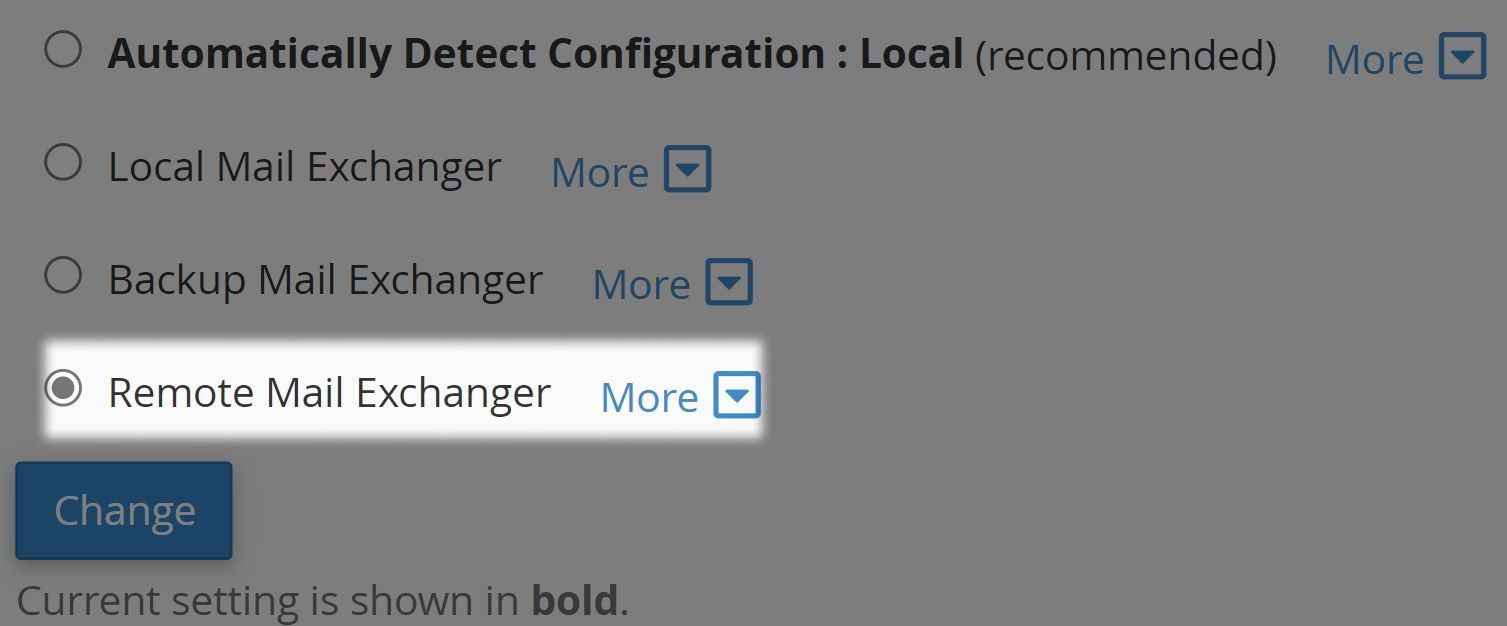
- After selecting your desired route preference, select "Change" to save changes
Download the Zen mobile application to manage your broadband plans.


Apple and Apple logo are trademarks of Apple Inc. Google Play and the Google Play logo are trademarks of Google LLC.
