cPanel Disk Usage
Understanding Disk Usage in cPanel
Keeping an eye on your disk space helps your hosting account run smoothly and makes it easier to stay in control of your files, emails, and backups.
This guide explains how to use the Disk Usage feature in cPanel, what the figures mean, and how to safely investigate what’s using up space on your account.
The Disk Usage feature gives you a clear breakdown of how your storage is being used. It highlights which folders and areas of your account are taking up the most space, helping you spot things like:
- old or unused backups
- large media files
- email folders with lots of messages or attachments
- archived or forgotten data
Seeing this information makes it easier to decide what you might be able to tidy up.
Before you make any changes
Before deleting or moving anything, it’s important to take a few precautions:
- Make sure you have a backup of your account, a guide for this can be found here
- Check what the files are used for so nothing vital is removed
- Confirm the data isn’t needed elsewhere or already stored safely
- Take extra care with website files, databases, and email folders, as removing the wrong items can stop your website or email from working properly
If you’re unsure, it’s best to check with your developer or IT support before proceeding
1. How to access Disk Usage in cPanel
- Log in to your cPanel. If you need help, follow our guide How to log into your cPanel
- On the main dashboard, find the Files section
- Select Disk Usage
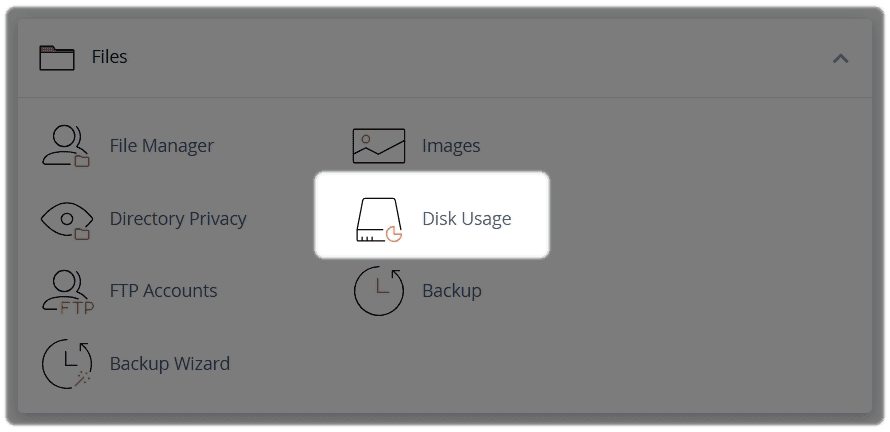
Allow a moment for cPanel to calculate and display your storage breakdown.
2. What you’ll see on the Disk Usage page
Once the page has loaded, you’ll see:
- A list of folders and areas of your account, displayed by size (in MB)
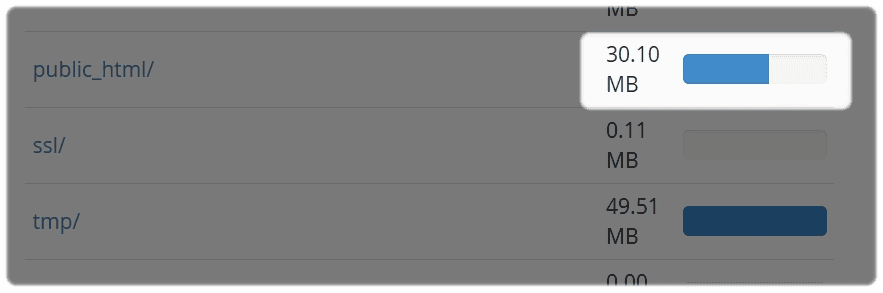
- Clear paths that help you track down files in File Manager
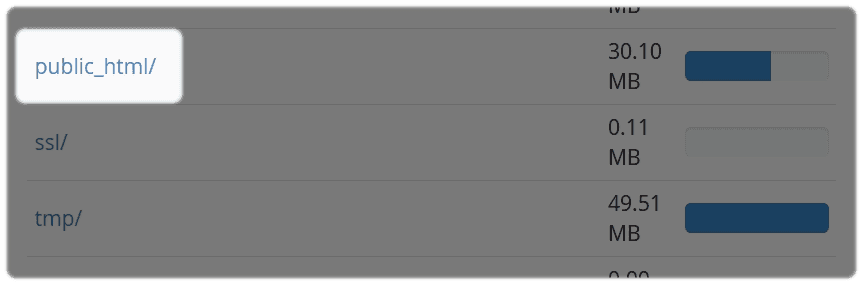
A Directory View is located at the bottom of the page for more detailed information.
- Expandable folders so you can drill down and see what’s inside
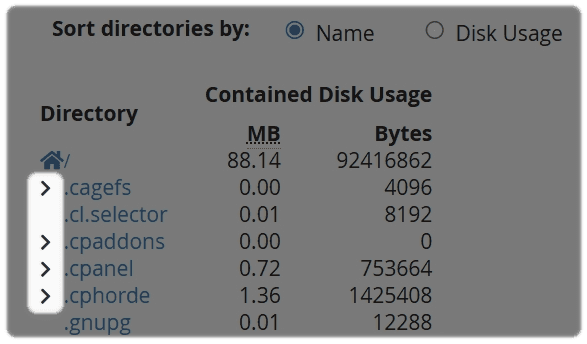
- Clear paths that help you track down files in File Manager
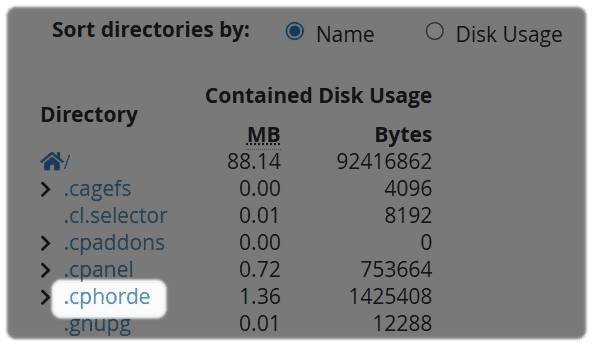
The larger the number shown next to a folder, the more space it’s using. Large values often point to backups, email data, media uploads, or archived file
3. Useful tips for managing disk space
- Always back up first before deleting or moving files. A guide for this can be found here
- If email storage is taking up most of your space, our Email Disk Usage guide can help
- You can also check the Statistics section in cPanel for a summary of your overall usage located on the right hand side
Please note that Zen does not monitor or manage your data. You’re responsible for reviewing and maintaining your own files, emails, and archives.
Disk space limits
Each cPanel account has a maximum disk allowance, which depends on your hosting package. If you’re unsure how much space is included with your plan, you can check your package details here.
Need Help?
Feel free to contact our Web Hosting team.
Download the Zen mobile application to manage your broadband plans.


Apple and Apple logo are trademarks of Apple Inc. Google Play and the Google Play logo are trademarks of Google LLC.
