cPanel Domain Redirect
Redirecting a Domain in cPanel
A domain redirect automatically sends visitors from one web address to another. It’s useful if you’ve changed your website address, moved to a new domain, or want an old domain to point to your main website.
Before you start
Before creating a redirect, make sure the domain you want to redirect is pointing to your cPanel server using the correct DNS A record.
If you need help with DNS, see our guides:
- Managing Domain DNS Records for Home | Help & Support | Zen
- Managing Domain DNS Records for Business | Help & Support | Zen
1. Create a Domain Redirect in cPanel
Log in to your cPanel. If you need help, follow our guide How to log into your cPanel
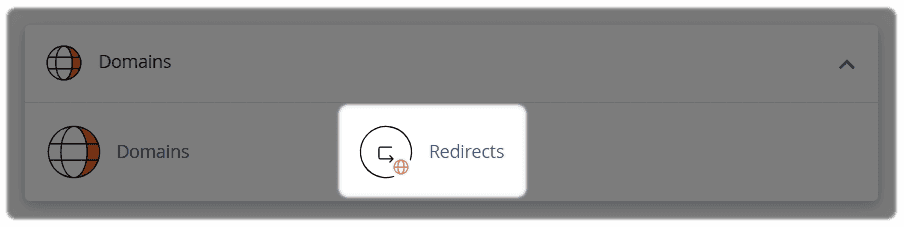
On the main dashboard, find the Domains section.
- Select Redirects
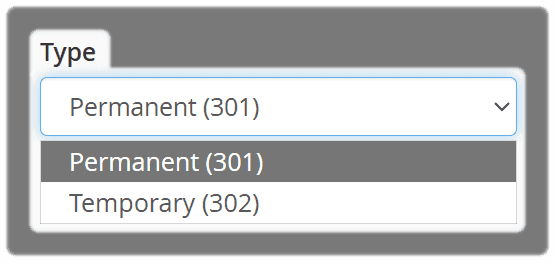
Choose the redirect type
- Select one of the following:
- Permanent (301) – use this if the change is long‑term
- Temporary (302) – use this if the redirect is only needed for a short time
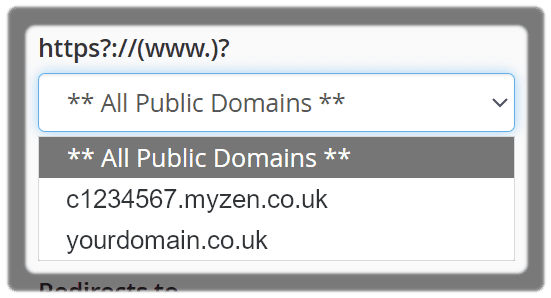
Select the domain
- Use the dropdown to choose the domain you want to redirect.
2. Enter the destination URL
In the next / box,enter the rest of the URL that you want to redirect users from.
For example, if you wish to redirect http://yournewdomain.co.uk/directory/file.html to another URL, enter directory/file.html.

In the Redirects to box, type the URL you want visitors to go to, for example: https://yournewdomain.co.uk
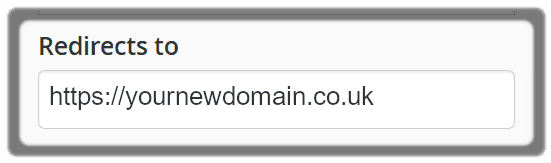
- Make sure the address is correct and includes
https://
3. Choose www and Wildcard options
www. redirection, select one of the following options:
- Only redirect with www. This setting only redirects visitors who enter the www. prefix before the domain name part of the URL
- Redirect with or without www. This setting redirects all users, regardless of whether the visitor enters the www. prefix before the domain part of the URL
- Do Not Redirect www. This setting does not redirect users who enter the www. prefix before the domain name part of the URL
Note: If you select **All Public Domains**, these options are disabled on the interface.
Wild Card options:
Use the Wild Card Redirect if you want all pages to redirect to matching pages on the new domain, for example: if someone visits youroldsite.co.uk/about, a wildcard redirect will send them to yournewsite.co.uk/about
Then select Add
To test the redirect, select the link under Directory in the Current Redirects table. If you have configured the redirect correctly, the system will direct you to the new domain, and you will receive a confirmation message from the system.
Useful notes
- You cannot change an existing redirect. To modify a redirect, you must delete it and then recreate it
- If you wish to redirect visitors from an insecure version of the website to the secure version, toggle the Force HTTPS Redirect option within the Domains section within cPanel
- Use a 301 redirect for permanent moves. This tells browsers and search engines the page has moved for good
- Make sure the destination URL is typed correctly, this includes the https://
- If the redirect does not work right away, give DNS some time to update if you have recently changed this
Need Help?
Feel free to contact our Web Hosting team.
Download the Zen mobile application to manage your broadband plans.


Apple and Apple logo are trademarks of Apple Inc. Google Play and the Google Play logo are trademarks of Google LLC.
