cPanel Password Reset
How to Reset Your cPanel Password
This guide explains two simple ways to reset your cPanel password:
- Method 1: Reset your password from the cPanel login page if you cannot sign in.
- Method 2: Change your password from within cPanel if you are already logged in.
Choose the method that best matches your situation.
Method 1: Reset Your Password from the cPanel Login Page
Use this method if you cannot log in to cPanel.
Important: This method only works if you have previously set a contact email address in cPanel.
For more information, see:
Updating Contact Information and Preferences in cPanel
- Go to the cPanel login page. For more information, see:
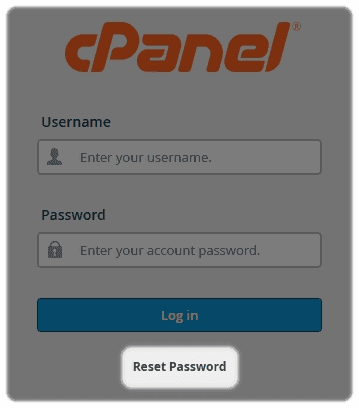
How to Log in to Your cPanel - On the login page, click Reset Password.
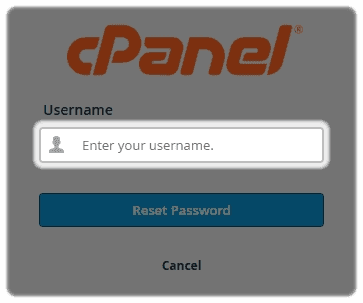
- Enter your cPanel username.
- Enter your contact email address.
- Select Send Security Code
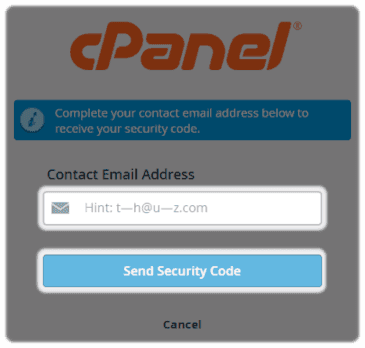
Tip: If you have not set a recovery email address in your contact preferences, the email address hint shown may appear random.
- Check your contact email address inbox for the password reset message
- Open the email and locate the unique reset code
- Enter the reset code on the password reset page
- Create a new password
- Save the new password and sign in again using your updated details
Method 2: Change Your Password from Within cPanel
Use this method if you are already able to log in to cPanel.
- Log in to your cPanel account. For more information, see:
How to Log in to Your cPanel
Once you have logged in to your cPanel:
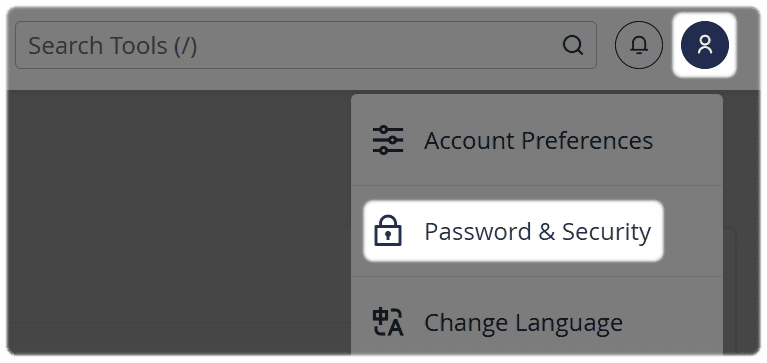
- In the top-right corner, click your Profile icon
- Select Password & Security
- Enter your current password
- Enter your new password
- Re-enter the new password to confirm it
- Or use the Password Generator
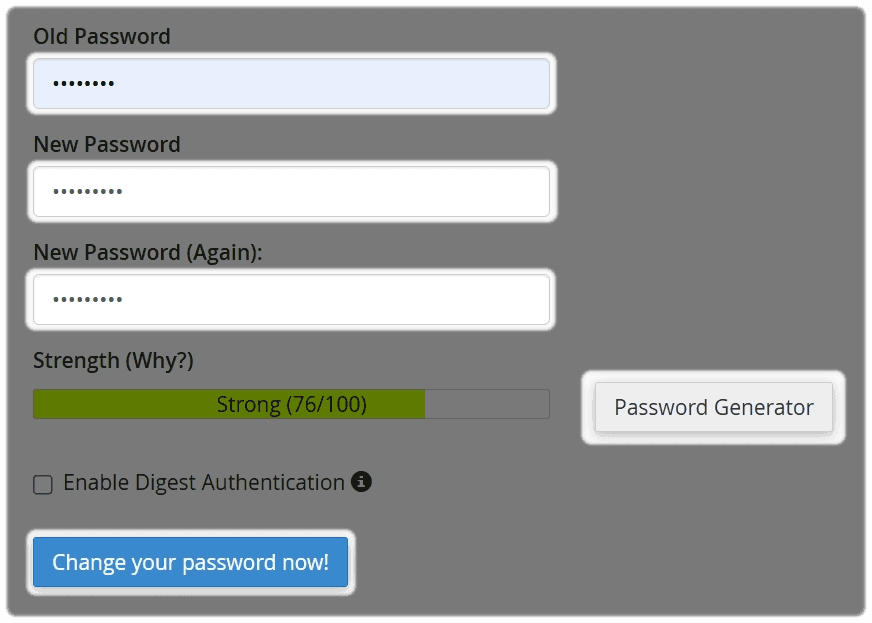
- Select Change your password now!
Important: Do not enable Digest Authentication.
You will be logged out automatically. Log back in using your new password to confirm the change was successful.
Download the Zen mobile application to manage your broadband plans.


Apple and Apple logo are trademarks of Apple Inc. Google Play and the Google Play logo are trademarks of Google LLC.
