Setting an Email Forward on cPanel
1. Accessing Forward Settings
- First, open your cPanel and log in (for a guide on how to do this look here)
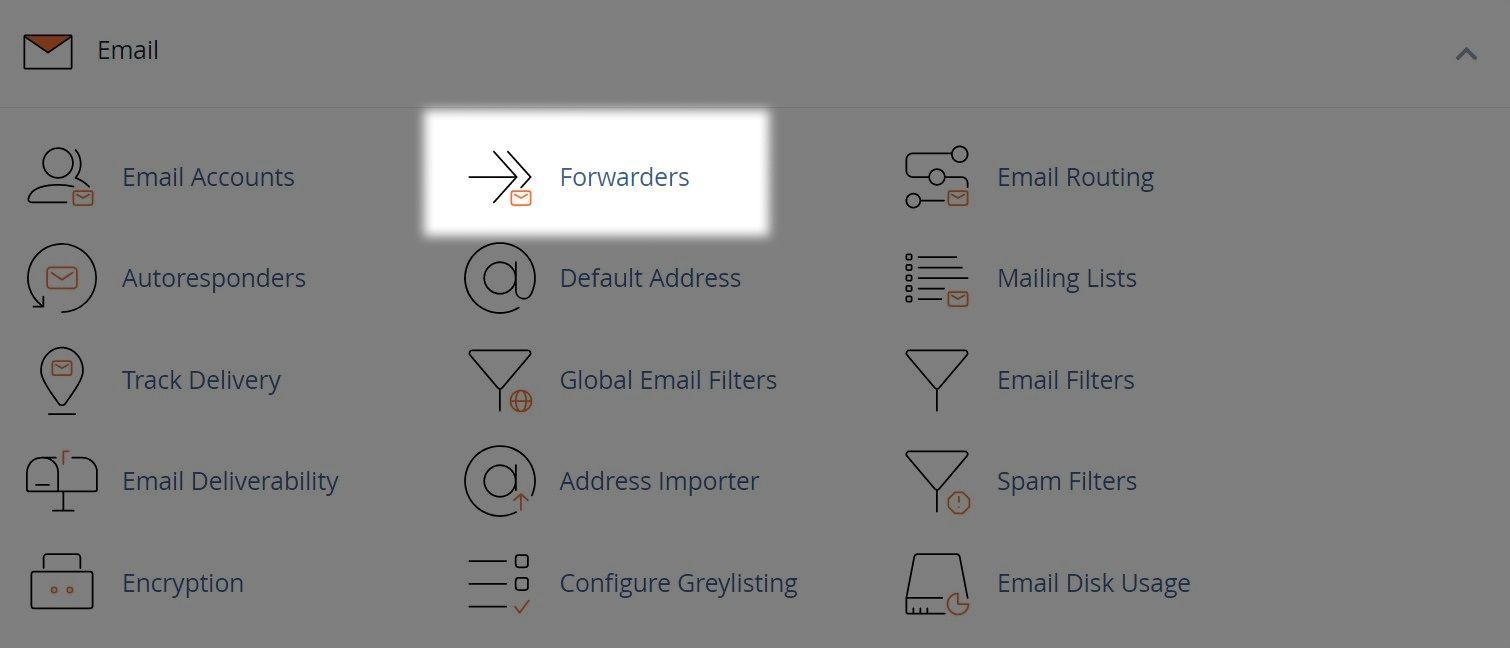
- Select "Forwards" from the "Email" sub-menu
2. Setting a New Forward
- Select the "Add Forwarder" button
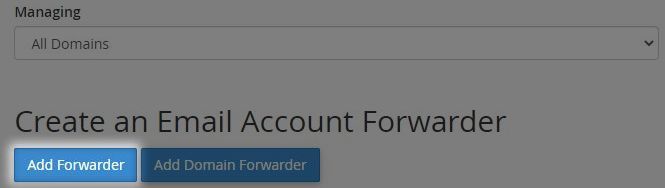
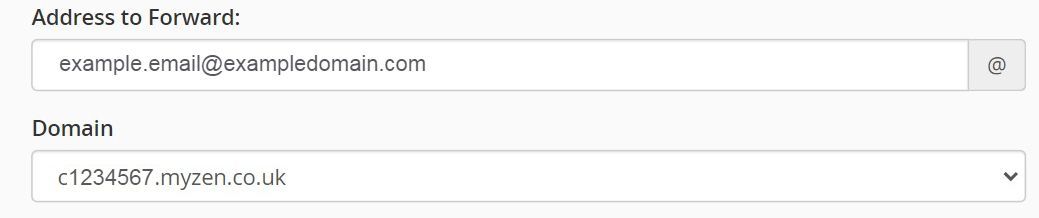
- On the next screen, enter the "email address" then the "domain" for the email you wish to forward
- Now enter the "Email Address" you wish email to be forwarded to
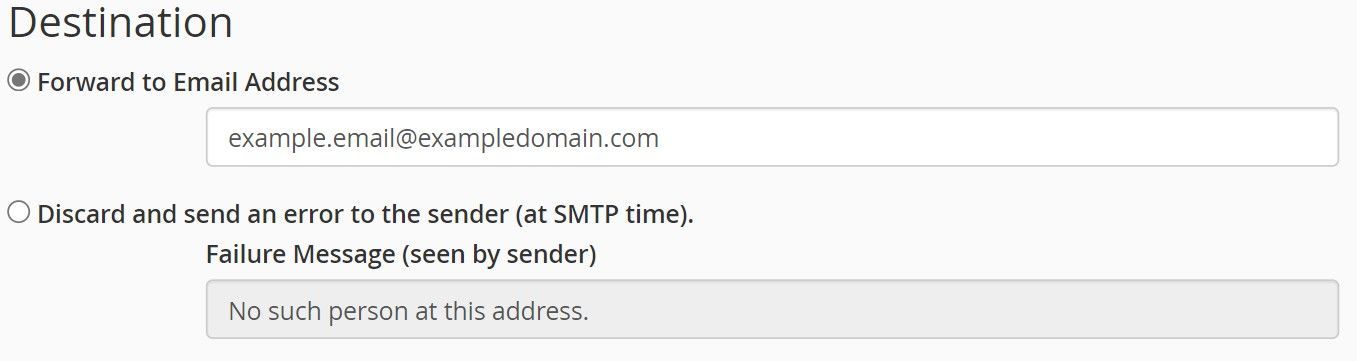
- There are "Advanced Options" available to forward to a system account or to pipe to program
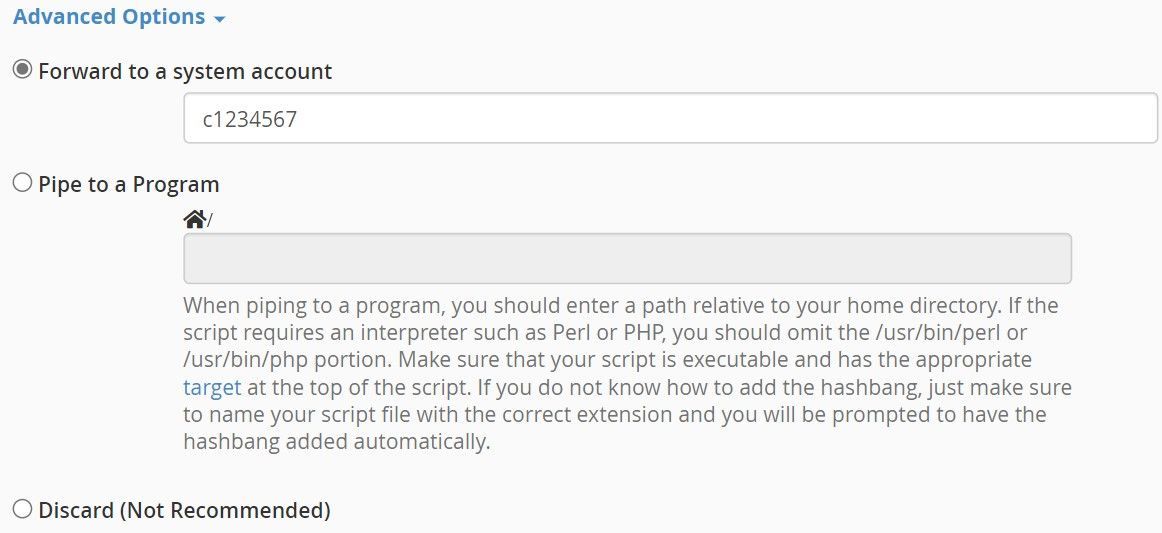
- Finally click the "Add Forwarder" button to confirm the change
Note: Email that is not directed to an address that is set up as an email account or a forwarder, will be discarded by default.
3. Deleting an Existing Forward
- Find the Forward within the "Email Account Forwards" sub-menu
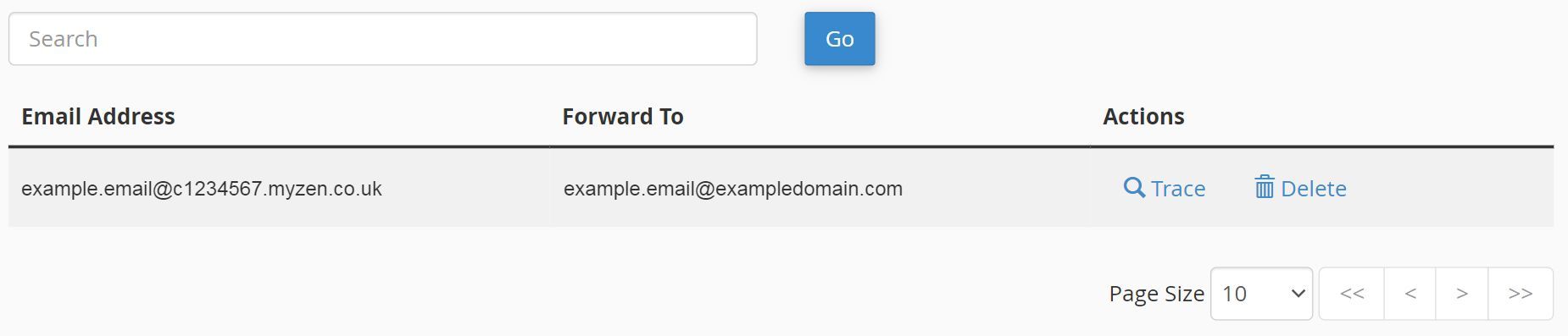
- Select the "Delete" button within the "Actions" column
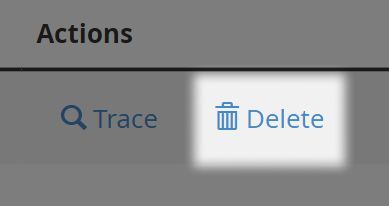
- Confirm the deletion of the forward, by selecting "Delete Forwarder"
Download the Zen mobile application to manage your broadband plans.


Apple and Apple logo are trademarks of Apple Inc. Google Play and the Google Play logo are trademarks of Google LLC.
