FRITZ!Box Guest WiFi Setup
Why Use Guest WiFi
If you're a business or simply have guests coming over. You can use Guest WiFi to manage how and when they use your Internet connection.
You can set the Guest WiFi network to automatically disconnect after a time, have to register with a portal before users gain access or even just gain access without a password using a QR code instead.
1. Log Into Your FRITZ!Box
- Start by finding the "FRITZ!Box Password" on the underside of your router
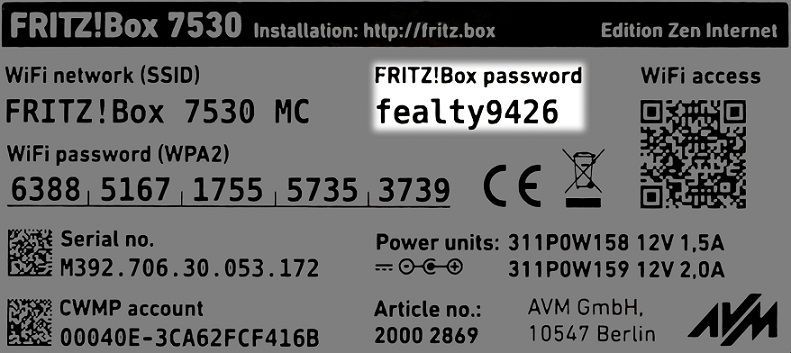
- Using one of your devices, open your web browser of choice and go to http://192.168.178.1 (when connected to your router via WiFi or a Wire)
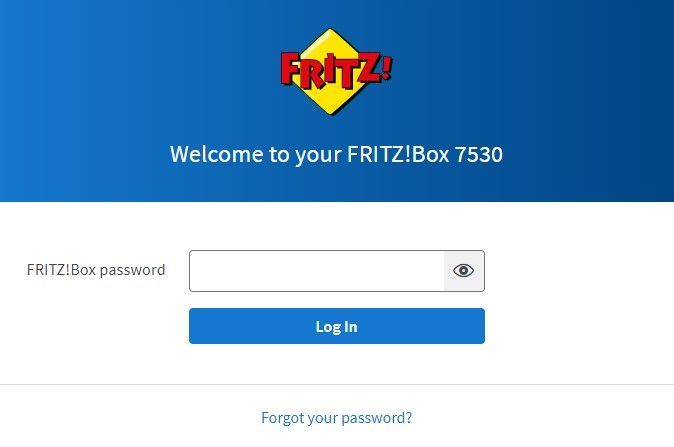
- You'll then be shown a log in screen with an empty "Password" field, enter the found password and click "Log In"
Note: You can also find these steps on our "How To" YouTube Video
2. WiFi Settings
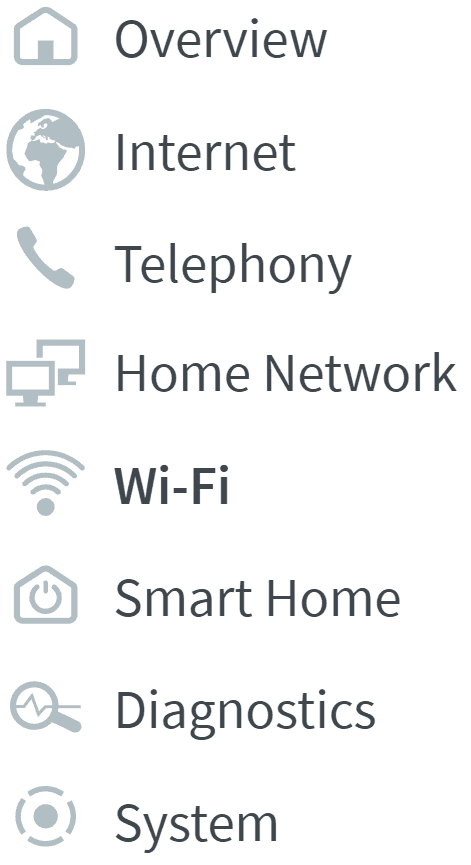
Now you're logged in, select the following menu options:
- "Wi-Fi" on the left-hand side of the page
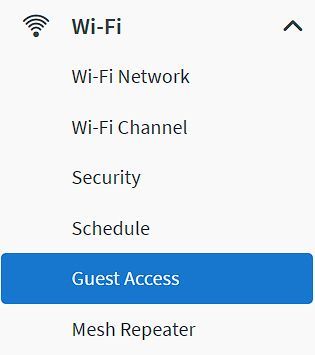
- Then select "Guest Access" within this
3. Enabling Guest Access
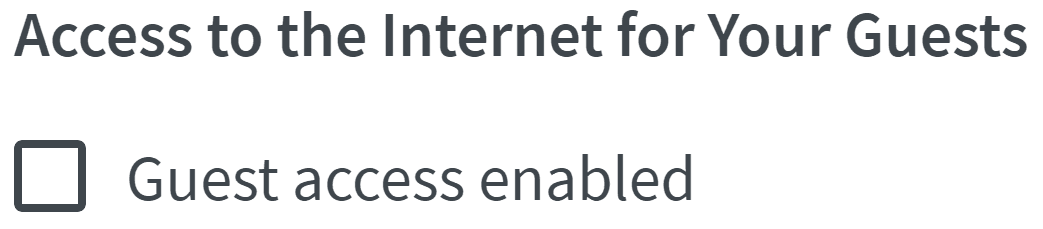
The enable Guest Access, tick the "Guest access enabled" box.
Select which network mode you wish to have.
If selecting "Private Wi-Fi guest access" you'll be asked to set the below details:

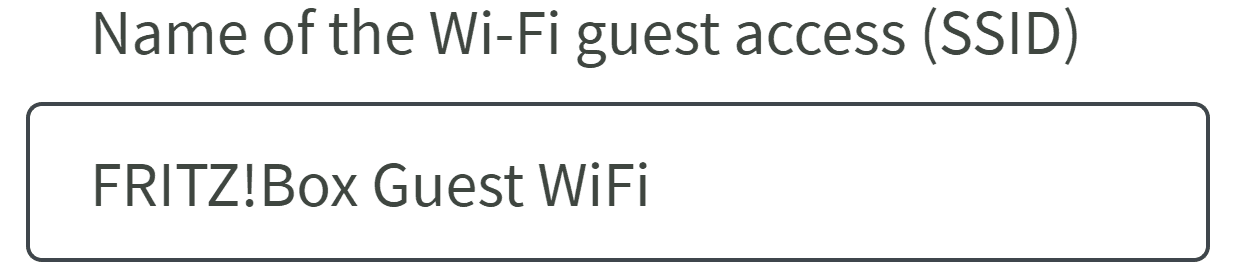
- "Name of the Wi-Fi guest access (SSID)" - Name for your Guest WiFi
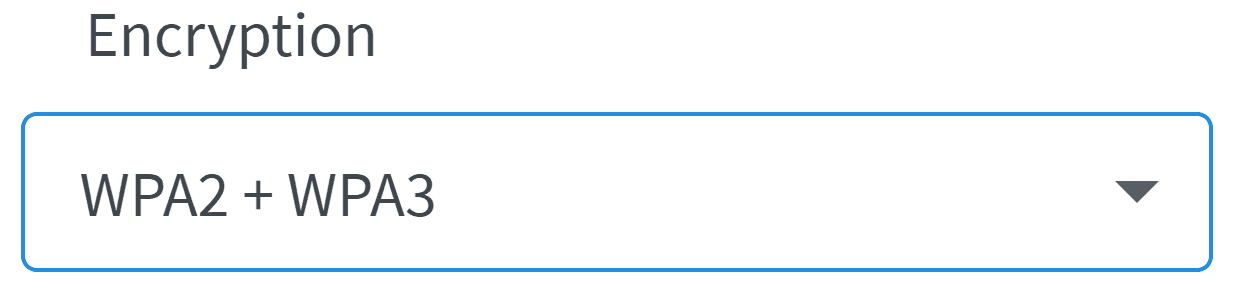
- "Encryption" - Security type for your WiFi connection (WPA2+WPA3 is recommended)
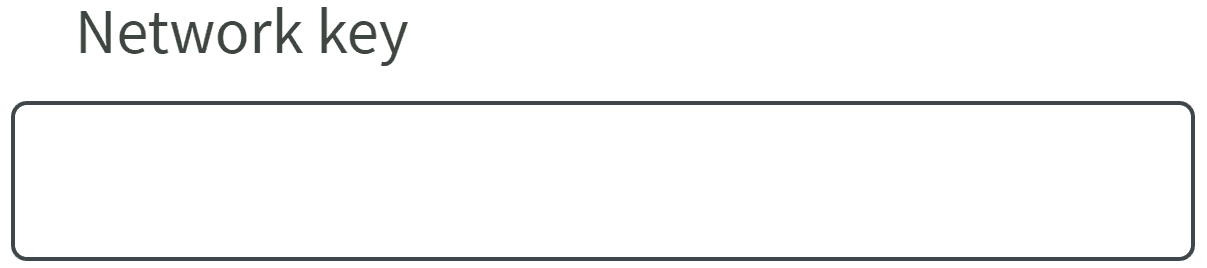
- "Network key" - The WiFi password for your connection
If selecting "Public Wi-Fi hotspot" you'll be asked to set the below details:

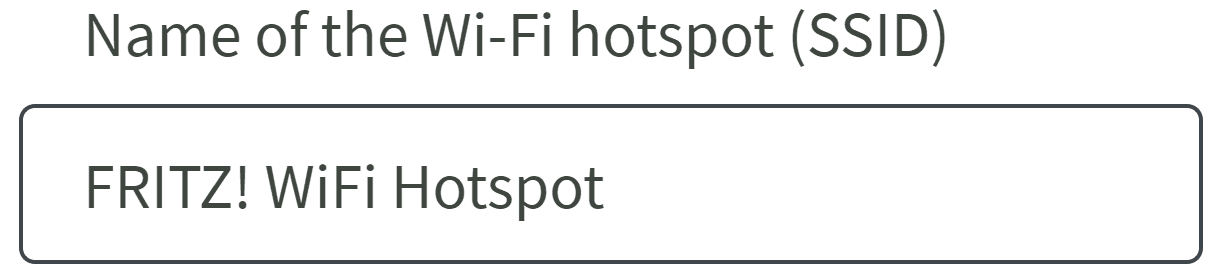
- "Name of the Wi-Fi hotspot (SSID)" - Name you want the WiFi network to show as
4. Changing Additional Settings
Within "Registration and Deregistration of Devices" you can restrict who can access Guest WiFi and for how long:
- "Display Captive Portal" - Creates a portal for users to need to log into before having access to your Internet

- "Disconnect Automatically After" - Time in minutes/hours that Guest Access will automatically be disabled and all connected users will be disconnected from WiFi

Within "Devices Using the Guest Access or Hotspot" you can set restrictions to devices connecting to your Guest WiFi:
- "Wireless devices may communicate with each other" - Allows devices to send files and information to one another (such as online gaming)

- "Restrict Internet applications" - Restricts use of your Guest WiFi to browsing and email only

- Click "Apply"

Download the Zen mobile application to manage your broadband plans.


Apple and Apple logo are trademarks of Apple Inc. Google Play and the Google Play logo are trademarks of Google LLC.
