How to Add additional eeros to your Network
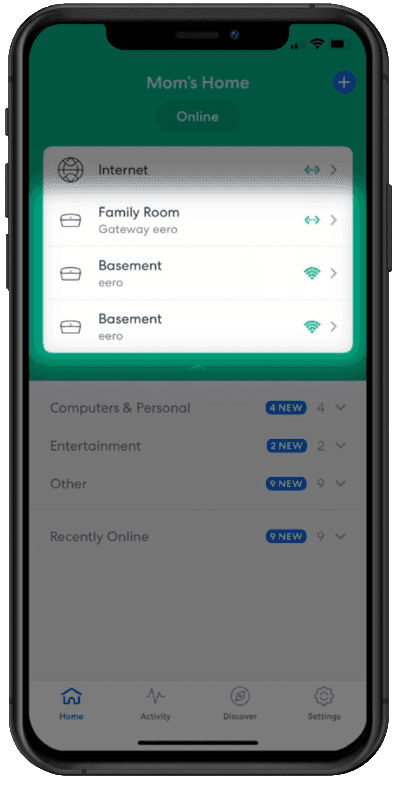
1. Open the eero App
- Open the eero app on your mobile device, now select the eero you wish to remove from the list
2. Locating eero Settings
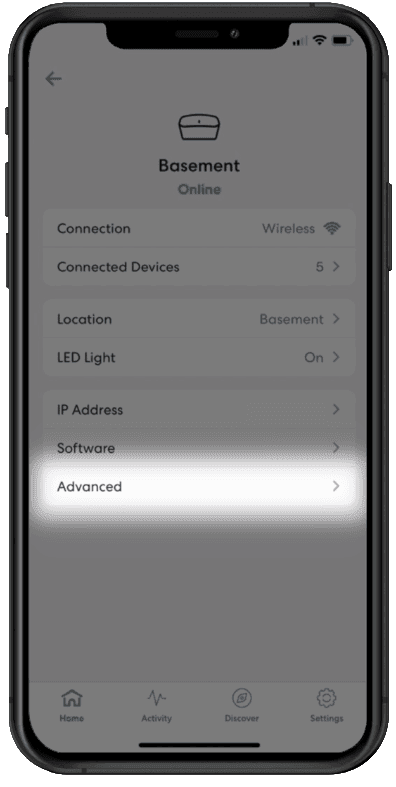
- Within the eero Device select "Advanced"
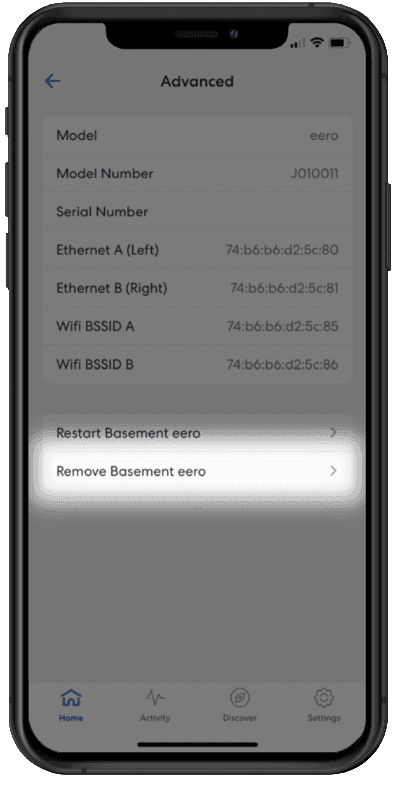
- Then select "Remove eero"
3. Removing the Device
- If you're sure you wish to remove this eero select "Remove from Network"
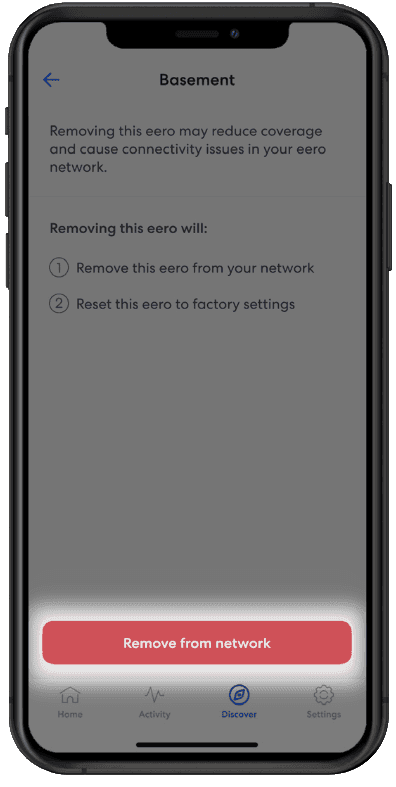
- If your Mobile shows a further prompt, press the option to "Remove"
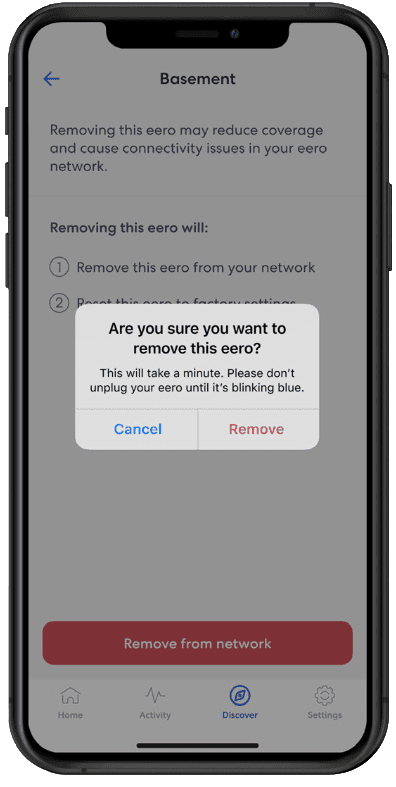
If you've selected the wrong eero at any time, click either the back arrow or "Home" within the App
Download the Zen mobile application to manage your broadband plans.


Apple and Apple logo are trademarks of Apple Inc. Google Play and the Google Play logo are trademarks of Google LLC.
