How to Update the WiFi Password on your eero
1. Locating WiFi Settings in the eero App
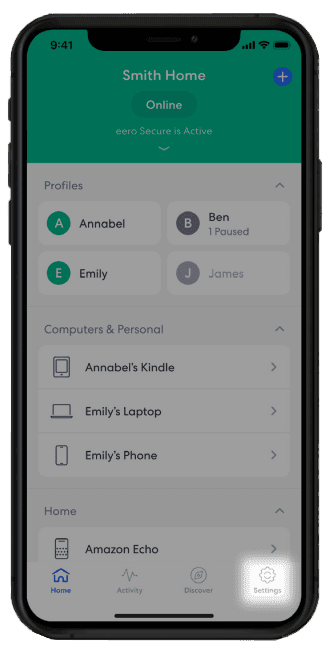
- Open the eero app on your mobile device, then select "Settings" at the bottom of the screen
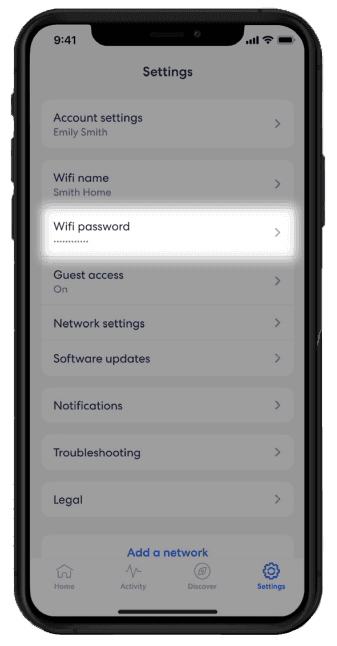
- Now select "Wifi Password"
3. View / Edit your Password
From this screen you can now see your current Wifi Password.
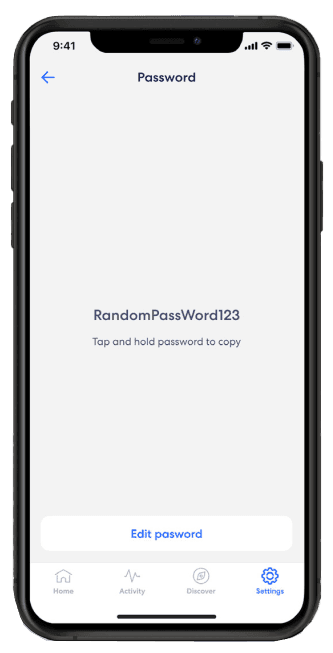
To change all you need to do is click on the Edit password button
2. Setting a new WiFi Password
- Select the "Wi-Fi Password" to edit and enter a new password based on your personal preference
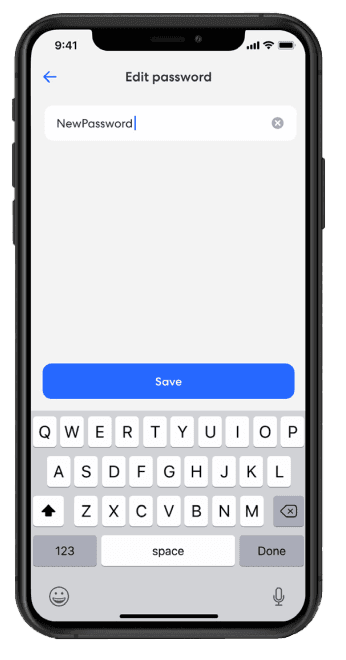
- Press "Save" and your new WiFi Password can be used to connect devices to your network
NOTE: Changing the WiFi password may cause existing devices to disconnect. Simply reconnect these to the existing WiFi Name using the new WiFi password
Download the Zen mobile application to manage your broadband plans.


Apple and Apple logo are trademarks of Apple Inc. Google Play and the Google Play logo are trademarks of Google LLC.
