Locking the FRITZ!Box Buttons
1. Log Into Your FRITZ!Box
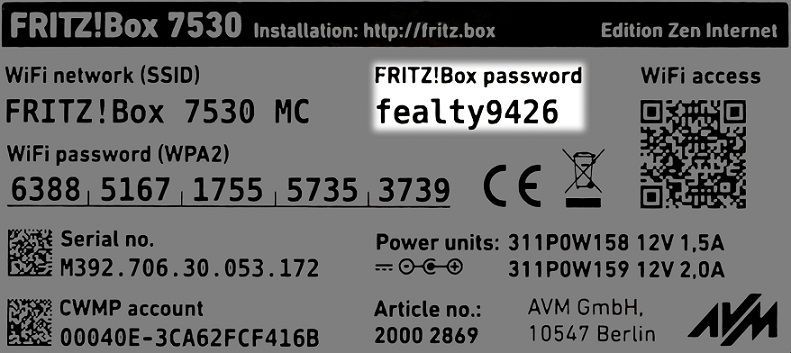
- Start by finding the "FRITZ!Box Password" on the underside of your router
- Using one of your devices, open your web browser of choice and go to http://192.168.178.1 (when connected to your router via WiFi or a Wire)
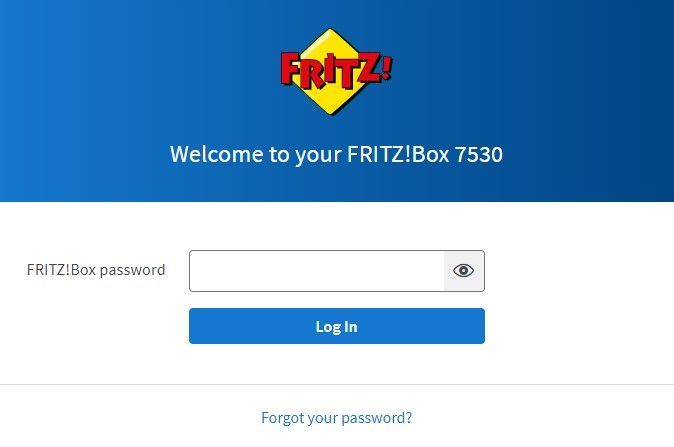
- You'll then be shown a log in screen with an empty "Password" field, enter the found password and click "Log In"
Note: You can also find these steps on our "How To" YouTube Video
2. System Settings
Now you're logged in, select the following menu options:
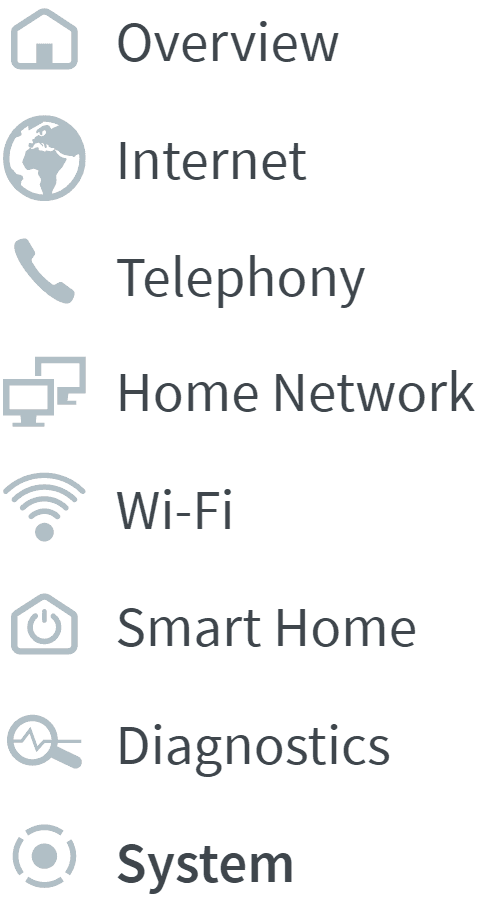
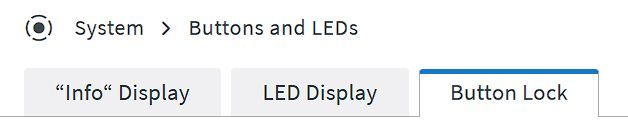
- "System" on the left-hand side of the page
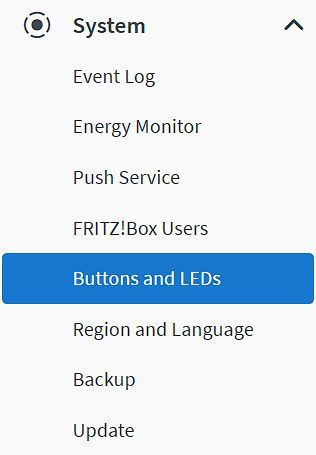
- Then select "Buttons and LEDs" within this
3. Button Lock Settings
You can change the brightness of the lights or turn them off completely within the system tab:
- "Button Lock" tab at the top of the page
- Select "Buttons Lock" to green/on to lock the buttons on the router
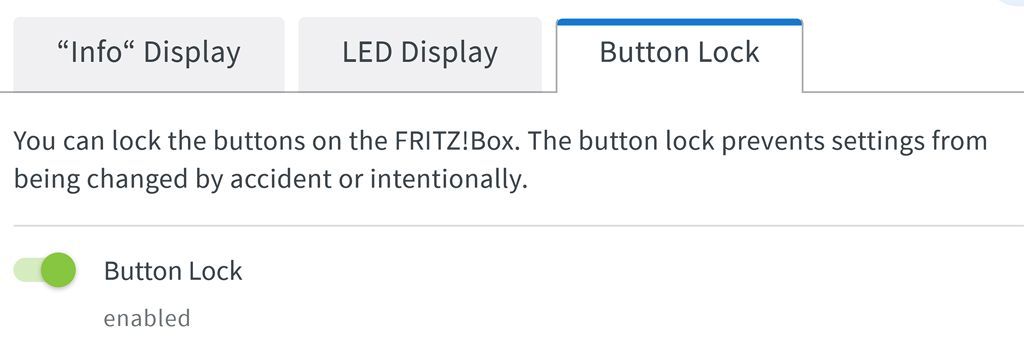
- Click "Apply" to save settings

Download the Zen mobile application to manage your broadband plans.


Apple and Apple logo are trademarks of Apple Inc. Google Play and the Google Play logo are trademarks of Google LLC.
