Changing FRITZ!Box Parental Controls
1. Log Into Your FRITZ!Box
- Start by finding the "FRITZ!Box Password" on the underside of your router
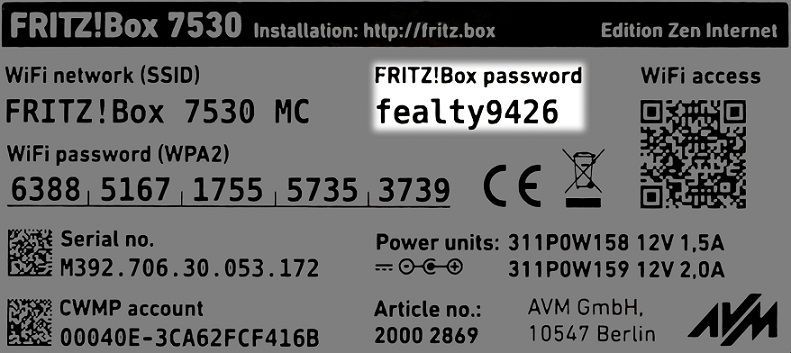
- Using one of your devices, open your web browser of choice and go to http://192.168.178.1 (when connected to your router via WiFi or a Wire)
- You'll then be shown a log in screen with an empty "Password" field, enter the found password and click "Log In"
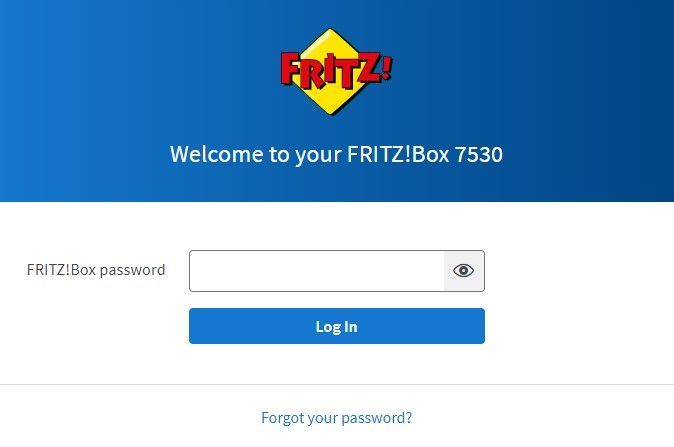
Note: You can also find these steps on our "How To" YouTube Video
2. Internet Settings
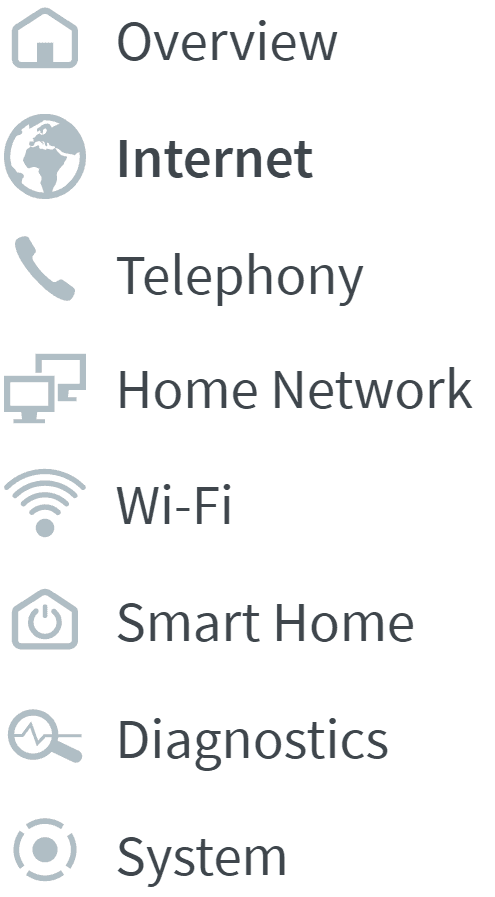
Now you're logged in, select the following menu options:
- "Internet" on the left-hand side of the page
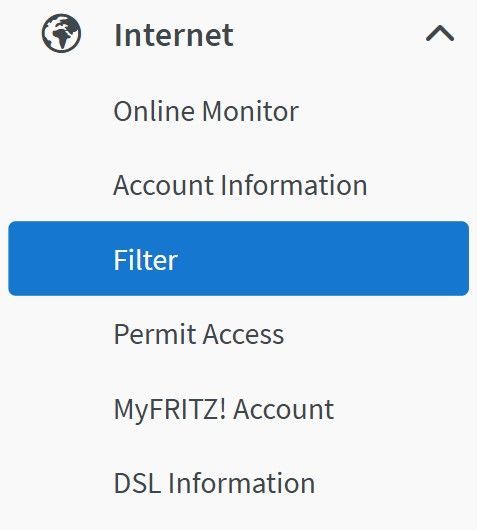
- "Filters" within this
3. Access Profiles
To set parental controls go to the following within the Internet tab:
- "Access Profiles" tab at the top of the page

- Click the "New Access Profile" button

- Enter a name for your access profile

4. Setting a Time Limit
There's a couple of ways to set a Time Limit:
- "Time Period" sets how long the Internet will be accessible within the specified timeframes per day that can be edited using the drawing tools
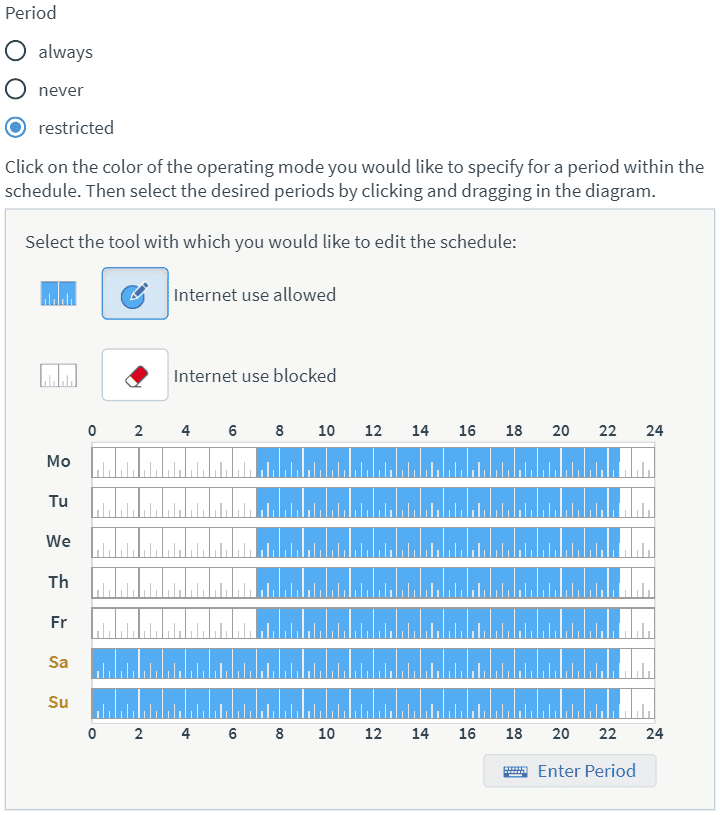
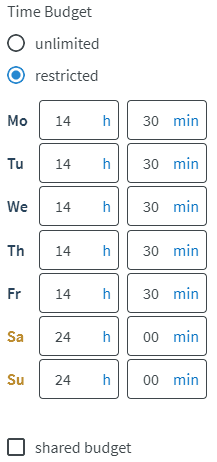
- "Time Budget" can determine how long each device has to access the Internet each day. This can also be a shared allowance across devices
- "Use of guest access blocked" applies the access profile to the devices on the list who access the Internet through guest WiFi

5. Web Page Filters
You can also apply filters to what websites can and can't be accessed when on this access profile:
- First tick the box for "Filter websites" to open further options for permitting & blocking websites
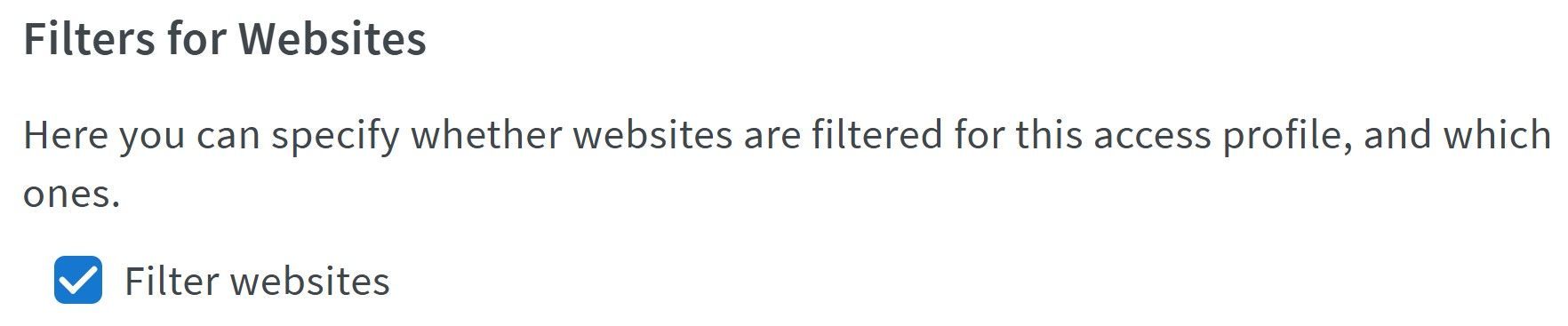
- "Permit Websites" sets what sites are useable when using this access profile

- "Block Websites" sets what sites are unusable when using this access profile

6. Setting Restricted Devices
After selecting "Ok" and creating the profile you now need to set the devices that are influenced by it:
- Select the "Parental Controls" tab

- Then select the "Change Access Profiles" button at the bottom of the page
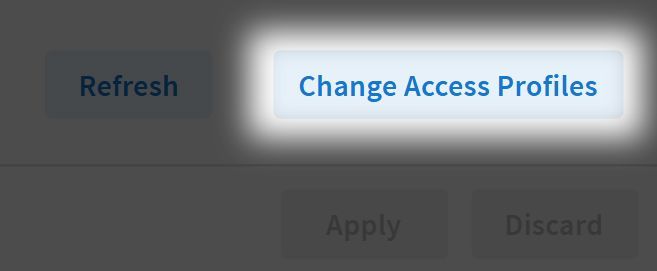
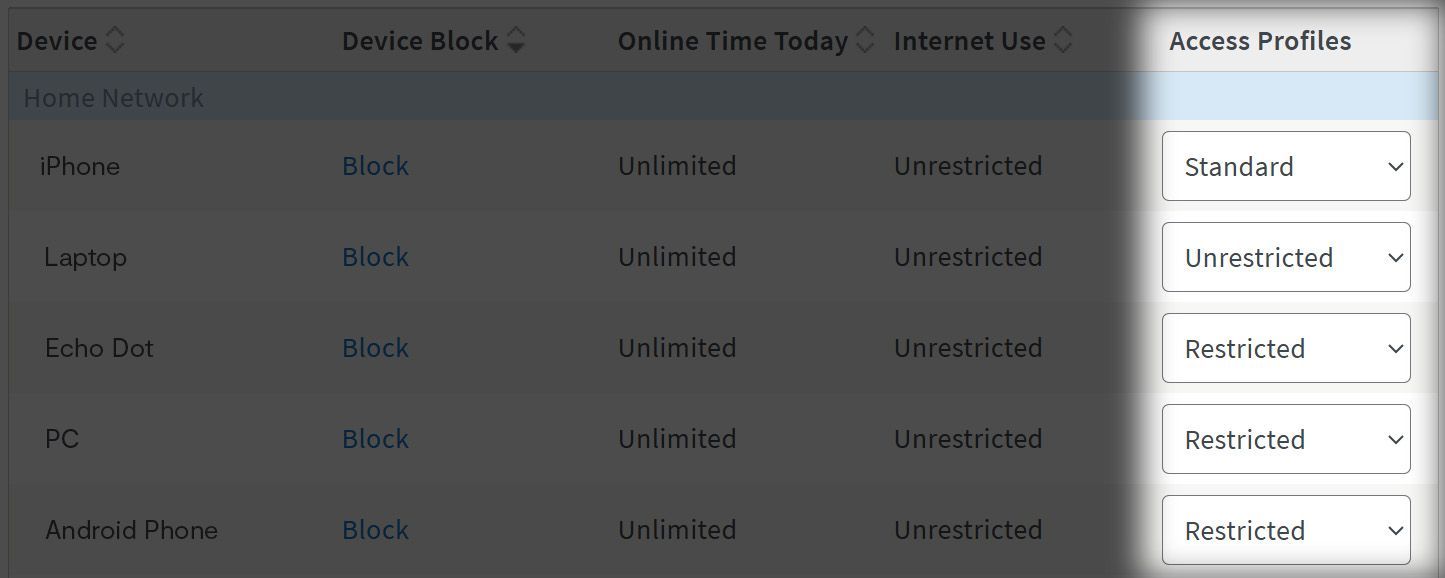
- Now using the drop down box to the right of each device under "Access Profiles" select the profile you wish each device to have
Download the Zen mobile application to manage your broadband plans.


Apple and Apple logo are trademarks of Apple Inc. Google Play and the Google Play logo are trademarks of Google LLC.
