Setting up Two-Factor Authentication on cPanel
1. Accessing Two-Factor Authentication Settings
- First, open your cPanel and log in (for a guide on how to do this look here)
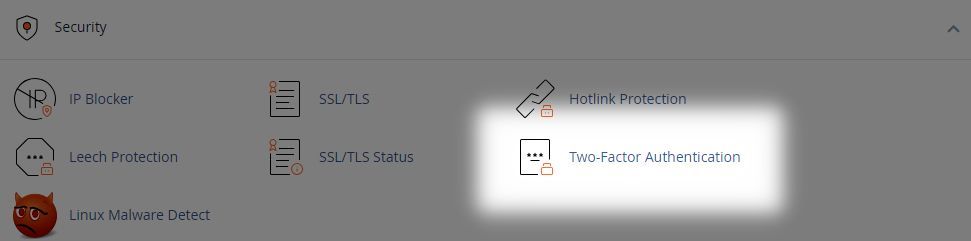
- Select "Two-Factor Authentication" from the "Security" sub-menu
2. Enabling Two-Factor Authentication
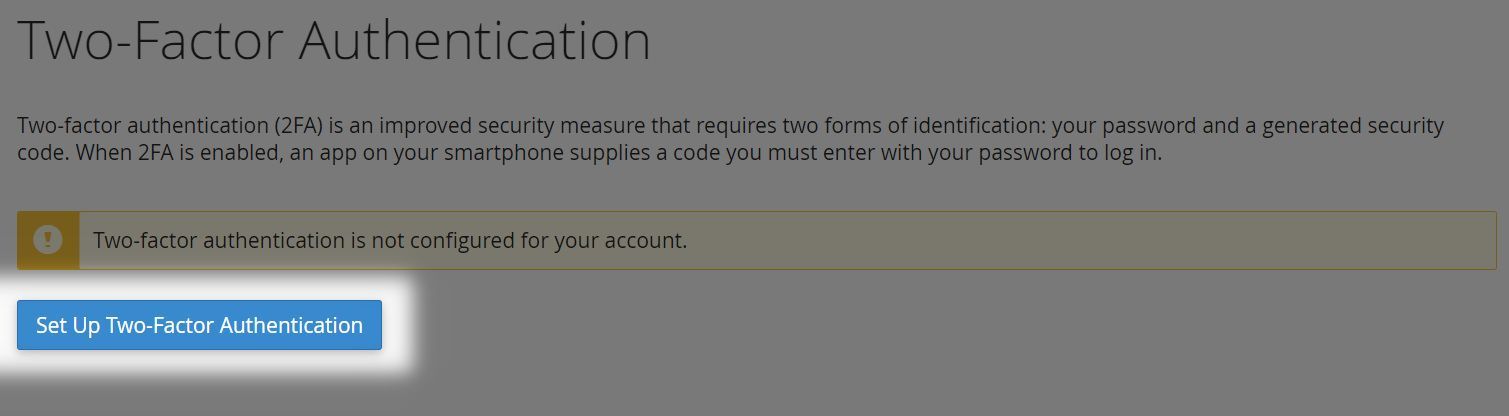
- Now select the blue "Set Up Two-Factor Authentication" button
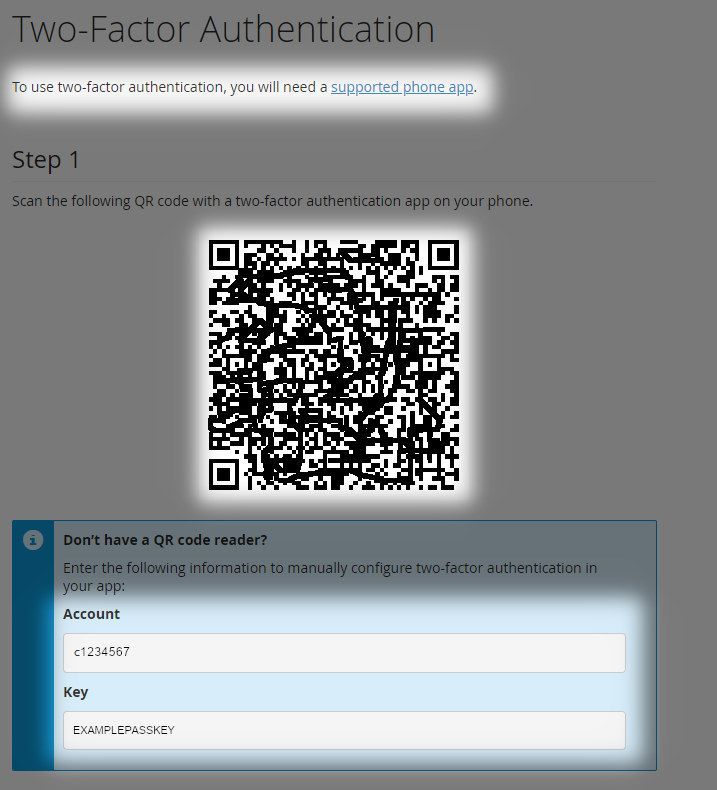
- To use Two-Factor Authentication, you'll need to setup a supported authenticator app on your smartphone
- After setting up an App, either scan the barcode on your cPanel or enter the "Account & Key" to configure Two-Factor Authentication
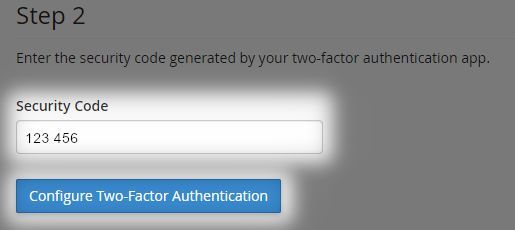
- After setting up your authenticator app to link to the cPanel, you'll need to enter the timed "Security Code from your smartphone into the field provided
- Now select the "Configure Two-Factor Authentication" button on cPanel, to complete the setup
3. Removing or Reconfiguring Two-Factor Authentication
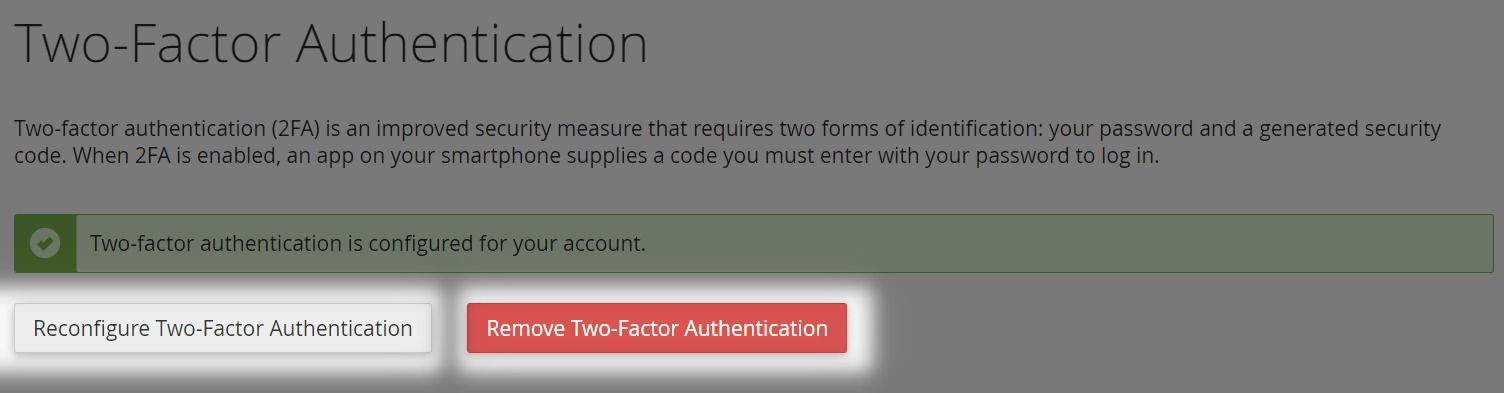
- Should you ever need to remove or reconfigure (using the same steps above) Two-Factor Authentication on your cPanel, click either of the corresponding buttons from the menu
Download the Zen mobile application to manage your broadband plans.


Apple and Apple logo are trademarks of Apple Inc. Google Play and the Google Play logo are trademarks of Google LLC.
