Trooli Full Fibre Router Setup
1. Removing Existing Broadband Equipment
If you've moved to Zen from a previous provider, carefully disconnect any equipment from your old ISP to make way for your new Zen FRITZ!Box.
2. Identifying your ONT
The ONT (Optical Network Terminal) could look different depending on when you had your service installed.
If you need help finding your ONT, look for a small black/grey or white box, mounted to a wall within your property (usually on the ground floor), with 4 lights.
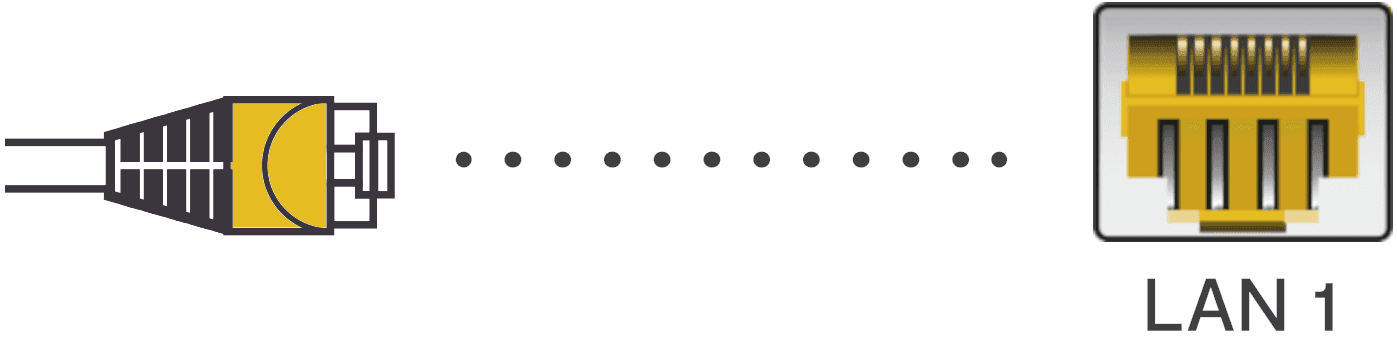
3. Connecting to Your Grey ONT
- Plug the Ethernet cable into "GE" on your ONT
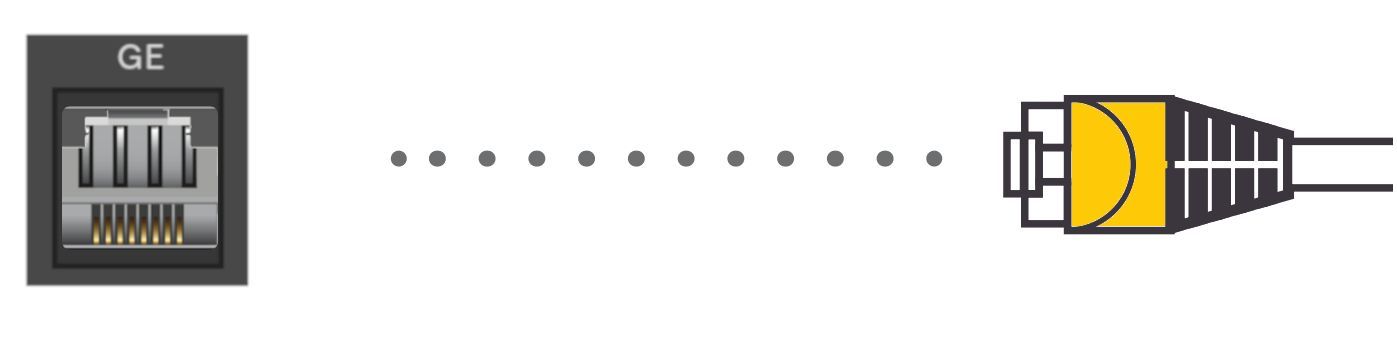
- Connect the other end of the cable into "LAN1" on your router
3. Connecting to Your White ONT
- Plug the Ethernet cable into "10GE" on your ONT
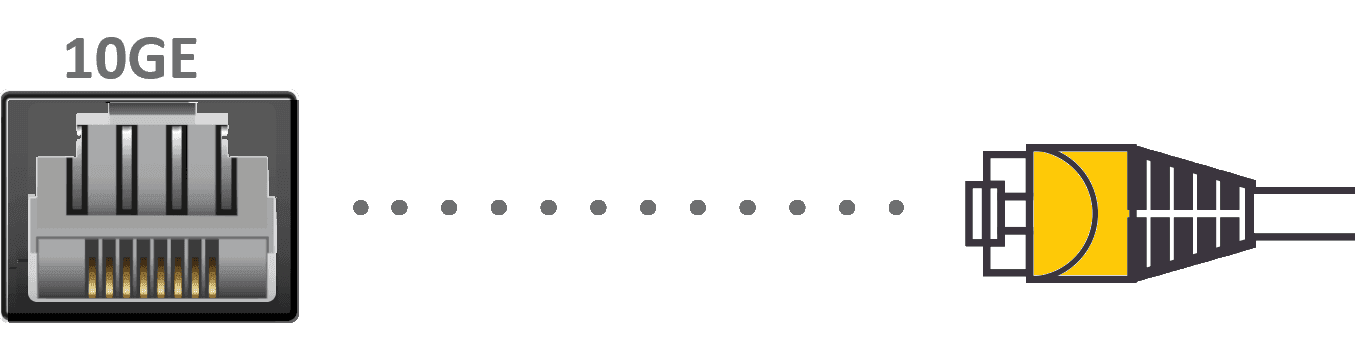
- Connect the other end of the cable into "LAN1" on your router
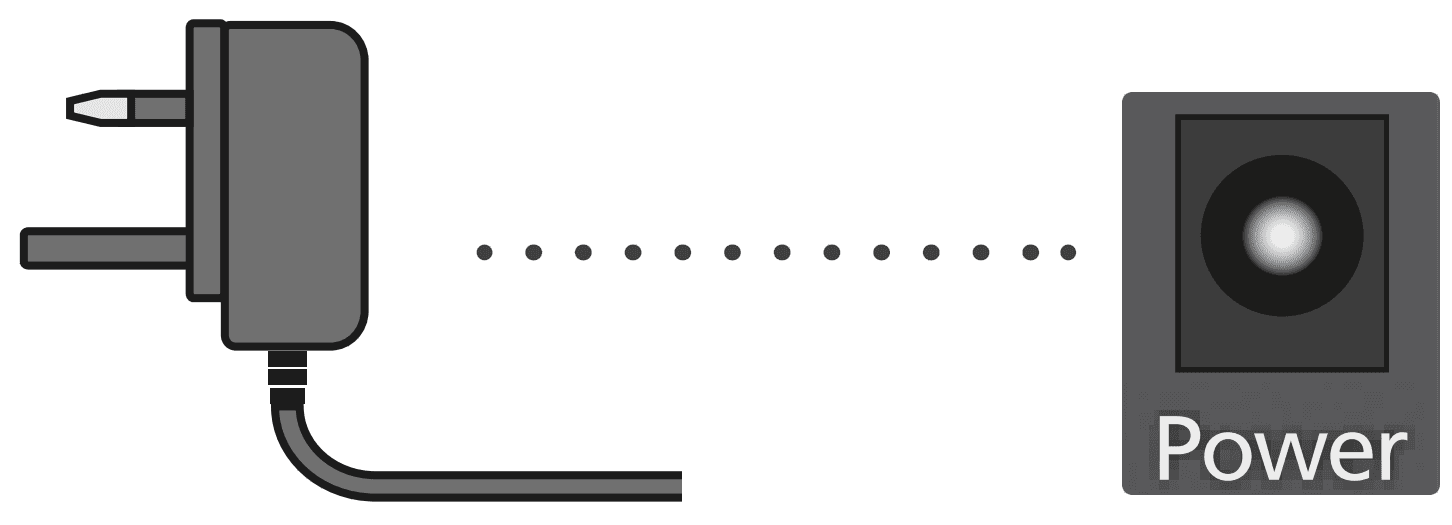
4. Connecting the Power Cable
- Mains power connectors may come with a UK style head you have to clip onto them. Once done, connect this to a mains power socket
- Connect the remaining power cable to the back of your router
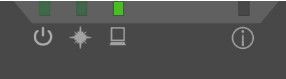
Now, the "GE" or "10GE" light will now begin to flash on your ONT. This indicates that your router is now talking to the Internet and setting up

5. Wait for 5 to 10 Minutes
Your router will need about 5-10 minutes to set itself up. It shouldn't need any help so go and make yourself a cup of tea whilst you wait.
When you come back, the Power/DSL light should be solid on the FRITZ!Box, meaning your router is ready to use!

Everyroom Setup
If you've purchased the Everyroom product from Zen, our Repeater Setup guide will help you connect it to your FRITZ!Box.
Contacting Technical Support
If you need further assistance, please contact our Technical Support team.
Download the Zen mobile application to manage your broadband plans.


Apple and Apple logo are trademarks of Apple Inc. Google Play and the Google Play logo are trademarks of Google LLC.
