CityFibre Router Settings for Technicolor
1. Log Into Your Techincolor
- Start by finding the "Technicolor login details" on the back of your router
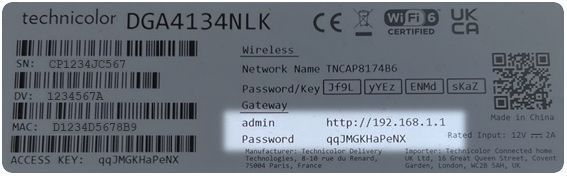
- Using one of your devices, open your web browser of choice and go to http://192.168.1.1 (when connected to your router via WiFi or a Wire)
Note: If using a Smartphone, it's recommended to disable your Mobile Data connection during this setup. - You'll then be shown a login screen with an empty "Username" and "Password" field
- Enter the username: admin
- Enter the the password taken from the back of the router
- Select "Log In"
2. Internet Settings
Now you're logged in,
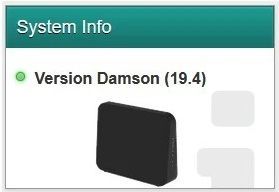
- Select the "System Info Tile" towards the top left-hand corner of the homepage to load the router settings:
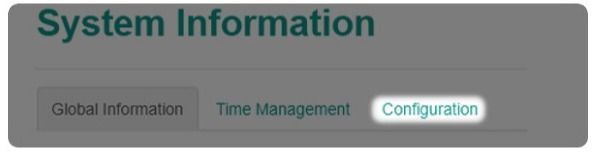
- Go to the Configuration tab
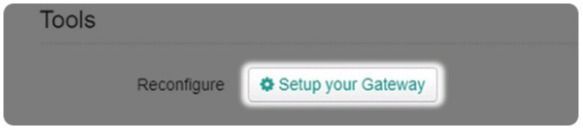
- Then scroll down the page to the Setup your Gateway button and select this
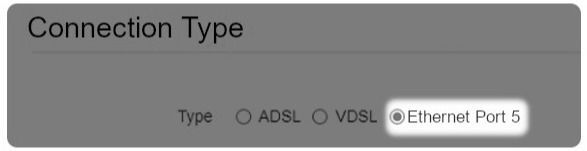
Connection Type:
- Set the connection type to Ethernet Port 5
3. Entering Connection Settings Information
Now enter the following details
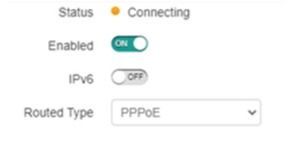
Connection Configuration - Ethernet WAN:
- "Enabled" On
- "IPv6" If you have an IPv6 address, toggle this "On"
- "Routed Type" PPPoE
User Details:
- "Username" enter your "Broadband username"
- "Password" enter your "Broadband password"

If you do not know the user details, you can find these from the customer portal following this guide: Finding connection details
VLAN
- "MTU" 1500
- "VLAN Enabled" On
- "VLAN ID" 911
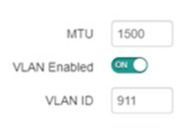
Note: If the VLAN is not enabled and set to 911 the connection will not work.
Select Save to apply the changes. Once these have been saved, test your connection. This should now be working.
Contact us
If the above steps don't get you online, please contact our Technical Support team for further assistance.
Download the Zen mobile application to manage your broadband plans.


Apple and Apple logo are trademarks of Apple Inc. Google Play and the Google Play logo are trademarks of Google LLC.
