Finding your Broadband Webspace Details
Need to go back?
This guide is part 2 of a step-by-step series to help our customers migrate their webspace content from our website.
If you've found this page by mistake or wish to go back to the beginning, click here!
If you have a broadband webspace with us, your content could be within one of two places.
If you have a Broadband Webspace (zen123456)
- You should already be on a "Select a Service" page from the previous guide, select your broadband service that shows
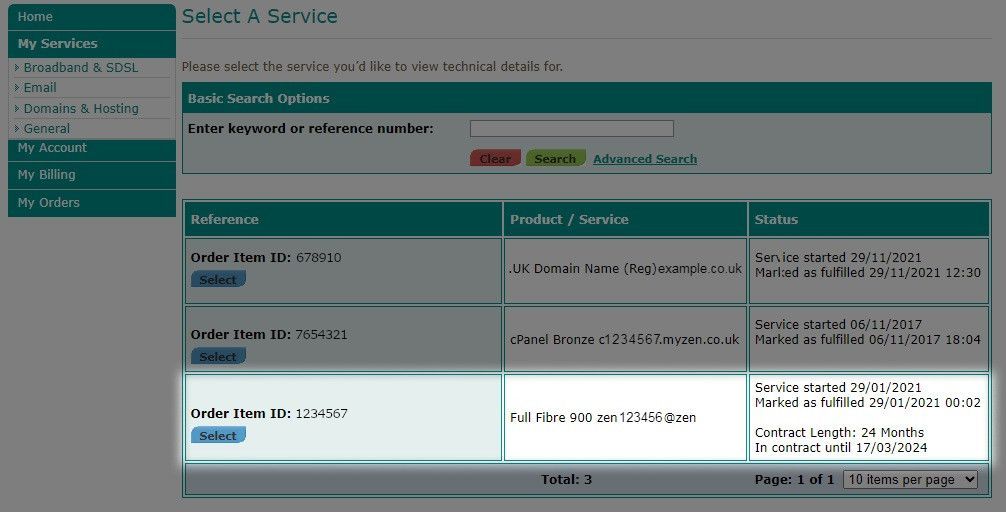
if you don't see this page, click here to go back to the steps that get you there. - Scroll down the page to the "Web Space Settings" area
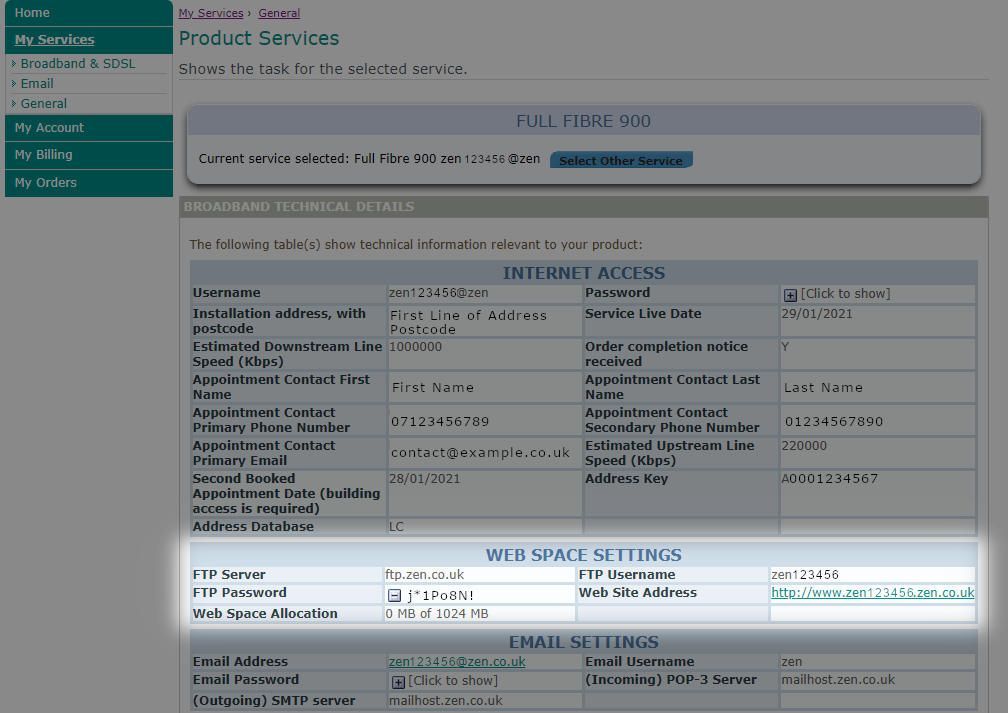
- Check the "Web Space Allocation" if this is more than "0MB of 1024" take a note of all of these details

After taking a note of the details or even if you see "0MB of 1024", move to step 2 below.
If you have a Myzen Webspace (example.myzen.co.uk)
- Select the "My Services" tab at the side of the page
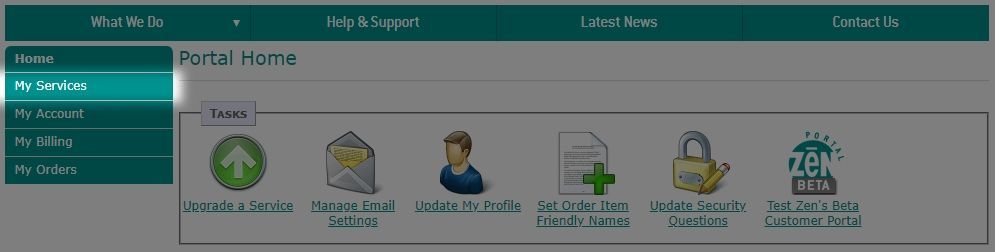
- If the "Manage Subdomain Settings" option shows under the "Email Settings" section, select this
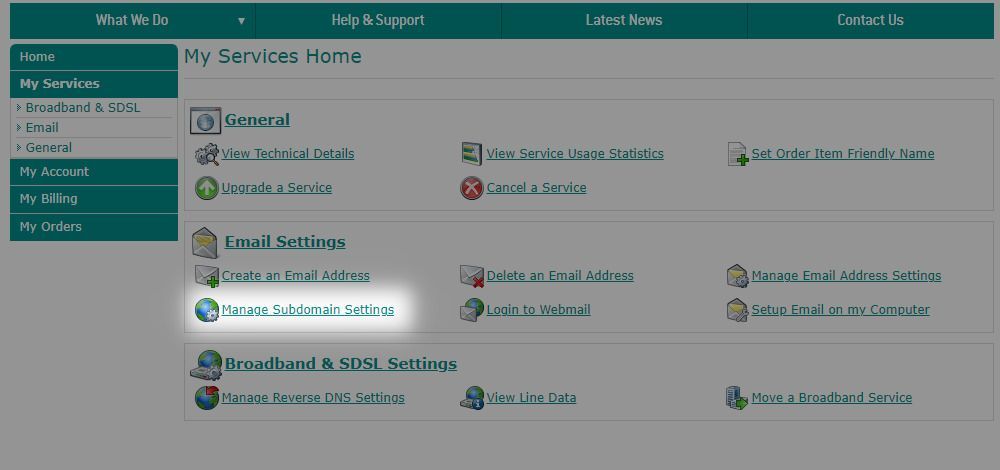
If this option doesn't show for you that's okay, just continue to the step 3. - Now select the "Settings" button under the "Sub-Domain" section
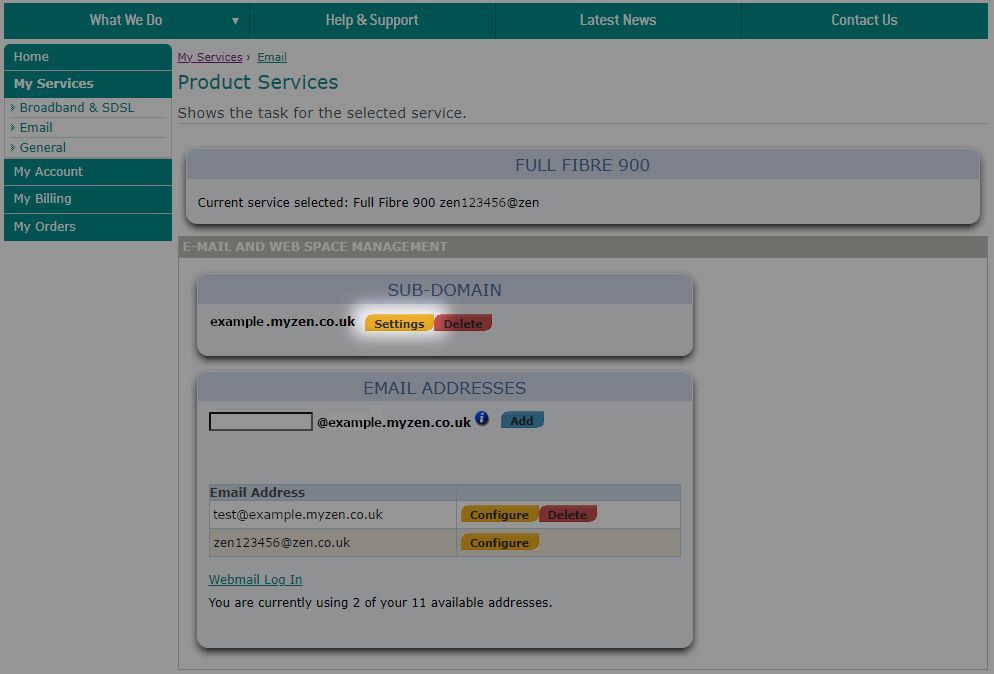
- Find the "Sub Domain Settings" section. Check the "Quota Used", If this is more than "0" take a note of all other details in this section.
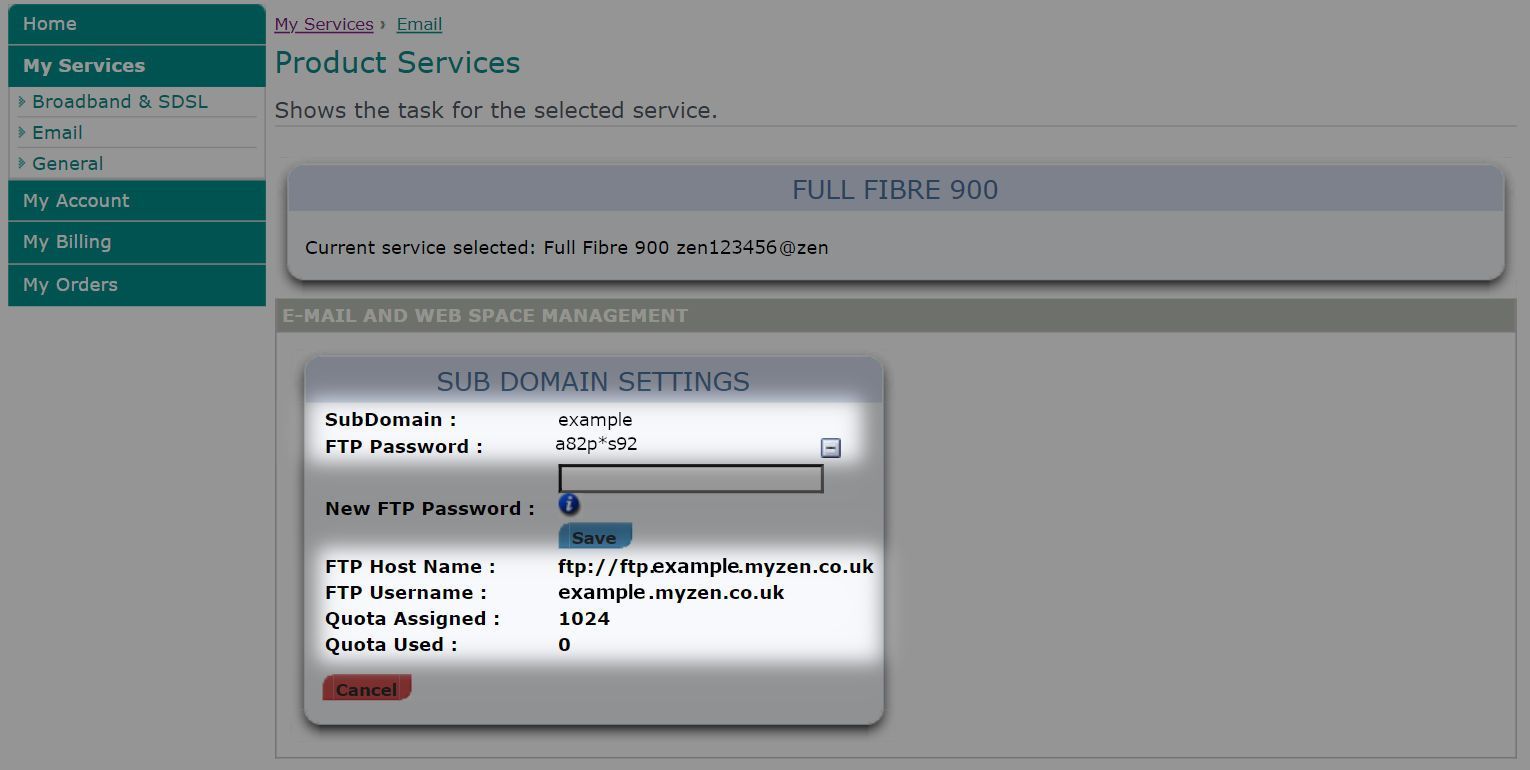
After taking a note of the details or even if you see "0", move to the next step below.
Downloading your Webspace Content
Now you have your Webspace details from the above steps, you'll now need to download the content from this. Click here for the steps needed to do this.
Download the Zen mobile application to manage your broadband plans.


Apple and Apple logo are trademarks of Apple Inc. Google Play and the Google Play logo are trademarks of Google LLC.
